Our Top Picks
Host Memory Buffer (HMB) is an NVMe feature that lets a drive without its own DRAM borrow a small slice of your system RAM to store its mapping table, and for most gamers it is something that works automatically and needs no tuning.
What Host Memory Buffer Is
Every SSD keeps a map that links the logical addresses your operating system uses to the physical flash locations where data actually sits. This flash translation layer table is read constantly. Higher-end drives keep that table in a dedicated DRAM chip on the drive. Cheaper DRAM-less drives skip the chip to save cost and power.
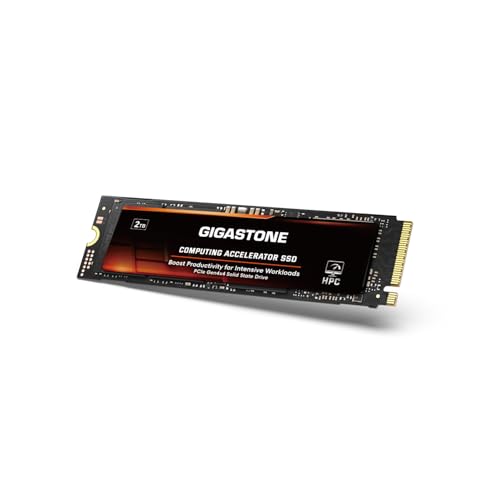
Gigastone 2TB HPC Computing M.2 SSD PCIe 4.0 NVMe SSD 5,000MB/s Host Memory Buffer Cache Accelerate Speed Coding Big Data Intensive Workloads, Internal Solid State Drive SLC Cache 3D NAND
Chosen because it specifies Internal Solid State Drive SLC Cache 3D NAND.
View on Amazon
GIGABYTE Gen3 2500E SSD 1TB NVMe M.2 Internal Solid State Hard Drive with Read Speed Up to 2400MB/s, Write Speed Up to 1800 MB/s, Host Memory Buffer Supported, (G325E1TB)
Chosen because it specifies Write Speed Up to 1800 MB/s and Host Memory Buffer Supported.
View on Amazon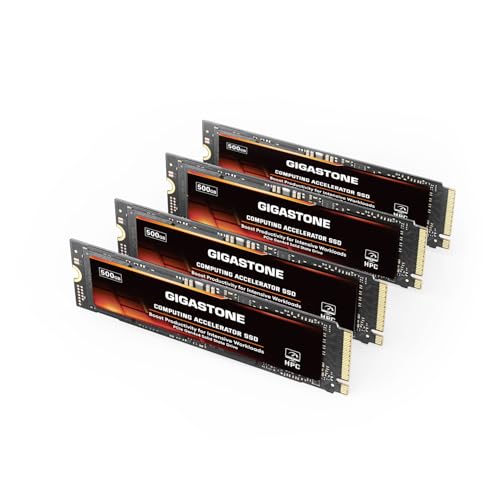
Gigastone 500GB HPC Computing M.2 SSD (4-Pack) PCIe 4.0 NVMe SSD 5,000MB/s Host Memory Buffer Cache Accelerate Speed Coding Big Data Intensive Workloads, Internal Solid State Drive SLC Cache 3D NAND
Chosen because it specifies Internal Solid State Drive SLC Cache 3D NAND.
View on Amazon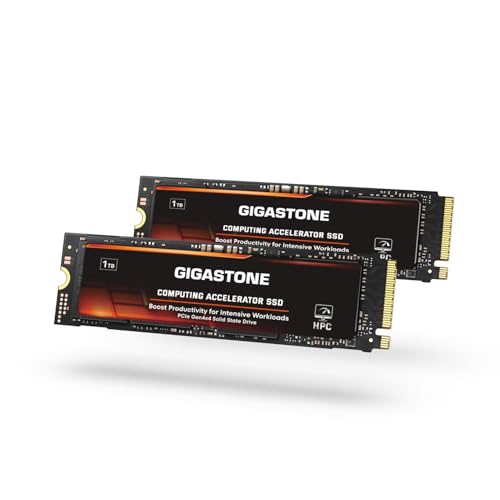
Gigastone 1TB HPC Computing M.2 SSD (2-Pack) PCIe 4.0 NVMe SSD 5,000MB/s Host Memory Buffer Cache Accelerate Speed Coding Big Data Intensive Workloads, Internal Solid State Drive SLC Cache 3D NAND
Chosen because it specifies Internal Solid State Drive SLC Cache 3D NAND.
View on AmazonHMB was introduced in the NVMe 1.2 specification as a way to claw back some of that lost performance. The drive asks the host for an allocation of system memory and uses it as a cache for part of the mapping table. The allocation is usually small, commonly in the range of tens of megabytes, and the exact size is chosen by the drive’s firmware within limits the driver permits.
How It Works
- At startup, the NVMe driver reads the drive’s HMB capabilities, including the minimum and preferred sizes it wants.
- The operating system reserves that memory and hands the drive a list of memory addresses.
- The drive reads and writes its mapping data into that space over the PCIe link.
- If a lookup is not in the HMB cache, the drive falls back to reading the mapping data from flash, which is slower.
The memory belongs to the operating system for the lifetime of the session. It is not available to games or apps, but because the amount is so small compared with modern memory capacities, the effect on available RAM is minor.
Why It Matters for Gaming PCs
HMB helps DRAM-less drives deal with random reads, which are the most common pattern when a game loads many small assets and when the operating system touches many small files. Reviewers who have compared DRAM-less and DRAM drives generally report that HMB narrows the gap in light consumer workloads but does not close it for sustained heavy writes or very large transfers.
For a gaming PC, that means a DRAM-less NVMe drive with HMB support is a reasonable secondary game library or budget primary drive. It is less ideal for heavy content creation, large project files, or workloads that write many gigabytes at a time, where a drive with its own DRAM and a larger cache holds up better.
Game load times are also limited by the CPU, storage API, and game engine. Many titles show only small differences between a fast and a mid-range NVMe SSD, so HMB is rarely the deciding factor in the real-world experience.
Quick Reference
| Topic | With DRAM on the drive | DRAM-less with HMB | DRAM-less without HMB |
|---|---|---|---|
| Mapping table location | Drive DRAM | Part in system RAM, rest in flash | Flash only |
| Random read behavior | Consistent | Improved over no HMB | Slowest of the three |
| System RAM used | None | Small allocation, often tens of MB | None |
| Typical use | Primary and workstation drives | Budget primary, game library | Older or limited platforms |
| User tuning needed | None | Usually none | None |
How to Check HMB on Your System
Windows
Windows supports HMB through its standard NVMe driver from the Windows 10 Creators Update era onward, and it is controlled automatically. There is no simple on and off switch in Settings. The reliable first step is to look up your drive’s specification on the maker’s product page, which normally states whether the drive is DRAM-less and whether HMB is supported. Some hardware information tools also report HMB status for NVMe drives. If a tool does not show it, that is not proof that HMB is off, as the display depends on the tool and its version.
Linux
The Linux NVMe driver supports HMB. System logs commonly show a line about an allocated host memory buffer when the drive is detected, and the NVMe command-line tools can query the HMB feature on a drive. The driver also has a module parameter that limits the maximum size, which is for advanced users and is rarely needed.
Can you set it in BIOS?
Generally no. HMB is negotiated between the drive and the operating system driver, not set in a motherboard menu. Some motherboard BIOS menus have NVMe-related options, and names vary by maker, so consult the motherboard manual if you suspect a platform issue. Changing BIOS storage settings can cause boot problems, and a wrong choice could stop the drive from being detected, so only change what the manual describes.
Common Misconceptions
- “HMB eats my RAM.” The allocation is small. On a system with 16 GB or 32 GB, it is rarely noticeable.
- “HMB makes a DRAM-less SSD equal to a DRAM SSD.” It helps but does not remove the differences, particularly under sustained heavy writes.
- “I must enable HMB manually.” It is automatic if the drive and driver support it.
- “HMB is a SATA feature.” It is part of the NVMe specification. SATA SSDs do not use it.
- “HMB makes games run faster.” It can slightly improve loading in some cases, but it does not affect frame rates once the game is loaded.
- “A DRAM-less drive is a bad drive.” Not necessarily. Controller quality, flash type, and firmware matter as much as the DRAM chip.
When to Care and When to Ignore
Care about HMB when you are choosing between a DRAM-less and a DRAM-equipped drive for a heavy workload, when you are buying an inexpensive NVMe drive and want to know how it will behave, or when you are building a system with very little RAM. In those cases the specification sheet and independent reviews are the best sources.
Ignore it when you are using a high-end drive with DRAM, when your workload is mostly gaming and web use, or when your system has plenty of memory. In everyday use the feature does its job unseen.
One more case where it matters is hardware passthrough and virtual machines. Some virtualization setups or older drivers do not provide HMB to the drive, which can leave a DRAM-less SSD at the slower no-HMB behavior. If a drive behaves worse than reviews suggest, an outdated storage driver or a firmware update from the maker is a reasonable thing to look at first.
Practical Buying Advice
Read the product specification for DRAM and HMB wording. Look for independent reviews that show sustained write behavior, since marketing sequential speeds on the box tell you little about how the drive handles long transfers. If you install games, a DRAM-less drive with HMB is generally acceptable. If you edit video, work with large files, or expect to fill the drive nearly full, a DRAM-equipped drive is the more comfortable choice. Keep the motherboard BIOS and the drive firmware current using the maker’s tools, and back up data before any firmware update.
Frequently Asked Questions
Does HMB reduce the life of my RAM?
No. The drive uses a small region of memory as a cache, and ordinary DRAM is not worn down by reads and writes the way flash is. The effect on the memory modules is negligible.
Is HMB the same as an SSD cache?
No. An SLC cache is a portion of the flash that is written in a faster mode, and HMB caches the mapping table in system RAM. They solve different problems and many drives use both.
Does PCIe 5.0 or PCIe 4.0 change anything?
HMB reads travel over the PCIe link, so a faster link can reduce transfer time. The larger limiting factor is still latency, and most budget drives use PCIe 4.0 or PCIe 3.0 anyway.
Can I turn HMB off?
Operating system and driver settings may allow it for advanced users, but it is not recommended for normal use. Disabling it would typically reduce performance on a DRAM-less drive.
Should I avoid DRAM-less drives for a gaming PC?
Not necessarily. Many gamers use them without problems as game libraries. They are more of a concern for system drives in heavy workloads, or for drives you plan to fill almost completely.