Our Top Picks
The fastest way to improve case airflow is to make sure fans form one clear path, with cool air pulled in through the front and hot air pushed out of the rear and top, then clear obstructions and set sensible fan curves in the BIOS.
Before You Start
- Power off the PC, switch off the power supply, and unplug the power cable before opening the case.
- Touch bare metal on the case to discharge static before handling parts, and avoid touching component contacts.
- Have cable ties or hook-and-loop straps, a screwdriver, a soft brush, and compressed air or a small blower.
- Note your current temperatures and fan speeds in a monitoring tool so you can compare before and after. Reviewers usually compare temperatures under a repeatable load, such as a game or stress test, and let the system warm up before reading.
- Read the case and fan manuals for the maker’s recommended fan positions and the number of fan mounts available.
Step 1: Understand the Airflow Path
Air takes the easiest route. In most ATX cases the reliable pattern is front intake, rear exhaust, and top exhaust. Cool air enters at the front, passes the storage and graphics card, and leaves near the CPU cooler at the rear or top, because hot air rises. Bottom intake fans can feed the graphics card if the case has vents there.

NZXT H6 Flow - Compact Dual-Chamber ATX PC Case - White | Compact dual-chamber ATX case with panoramic glass and 3 included 120mm fans. Airflow-optimized for clean, cool builds.
Chosen because it specifies Compact Dual-Chamber ATX PC Case and White.
View on Amazon
Hovadova Computer Tower Stand with Dual Cooling Fans, Fits Most PC | Adjustable PC Stand for Floor and Carpet, CPU Holder with RGB lighting and Fan Controller, Improve Airflow, 4 Locking Wheels
Chosen because it specifies Fits Most PC and Adjustable PC Stand for Floor and Carpet.
View on Amazon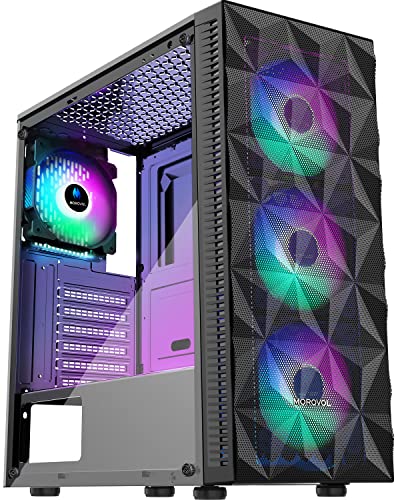
MOROVOL PC Case Pre-Install 4 RGB Fans, ATX Gaming Computer Case with Diamond-Shaped Mesh Front & Tempered Glass Side Panel, USB 3.0 Airflow Mid Tower case,621
Chosen because it specifies USB 3.0 Airflow Mid Tower case and 621.
View on Amazon
Hovadova Computer Tower Stand, Mobile CPU Holder, Fits Most PC | Adjustable Wide PC Stand for Floor and Carpet, Improve Airflow, PC Riser with 4 Locking Wheels, 110 lbs Support
Chosen because it specifies Mobile CPU Holder and Fits Most PC.
View on AmazonStep 2: Set Fan Direction
- Look at the fan frame. Most fans have arrows or markings that show airflow direction and rotation. If not, the side with the struts (the fan motor mount) is usually the exhaust side, but follow the fan maker’s markings.
- Set front fans to pull air into the case.
- Set the rear fan and top fans to push air out.
- If you have a radiator, decide whether it is intake or exhaust. A front-mounted radiator as intake gives the coolest air to the liquid but warms the air inside the case. A top-mounted radiator as exhaust is common for balance.
Step 3: Balance Pressure
Pressure describes the difference between intake and exhaust airflow. Slightly positive pressure, with a bit more intake than exhaust, pushes air out of gaps and reduces dust entering through openings that are not filtered. Negative pressure pulls air in through every gap, which can draw dust. Neutral pressure is an acceptable middle ground. Fan count alone does not set pressure, since size, speed, filters, and fan quality all play a part.
A practical starting point is two or three front intake fans and one rear plus one or two top exhaust fans. Adjust from there based on temperatures and noise.
Step 4: Clear Obstructions
- Remove or reroute loose cables that sit in front of fans or the graphics card intake.
- Use the case’s cable routing channels behind the motherboard tray and secure bundles with ties.
- Remove unused drive cages that block front intake if the case allows it.
- Make sure any dust filter is fitted to every intake and is not clogged.
- Keep the side panel vents, if any, unblocked and keep the case away from walls and carpets.
Step 5: Clean Dust
- Move the PC outdoors or to a ventilated area.
- Hold fan blades still with a finger or a soft tool so they do not spin when you blow compressed air, as spinning them freely can damage the bearings.
- Clean the filters, fan blades, heatsink fins, and the graphics card fans.
- Do not use a household vacuum inside the case, as it can create static.
Step 6: Set Fan Curves
Open your BIOS or UEFI setup by pressing the key shown at startup, commonly Delete or F2. Fan control menus are named differently by each motherboard maker, with labels such as Q-Fan Control, Smart Fan, Fan Control, or Hardware Monitor. Consult the motherboard manual for the exact menu path on your board.
- Select the case fan header you want to adjust.
- Choose PWM mode for 4-pin fans and DC mode for 3-pin fans, as the manual describes.
- Pick a profile such as Standard or Silent, or set a custom curve that ramps fan speed with CPU or system temperature.
- Keep a minimum speed that is not zero for intake fans so air is always moving, unless the maker designed the fan for zero-RPM operation.
- Save and exit.
BIOS changes can cause instability if set incorrectly and may affect your warranty if you also change power or voltage settings. Keep to fan settings and conservative values.
Quick Reference
| Setting or Part | Suggested starting value | Why |
|---|---|---|
| Front fans | Intake, 2 to 3 fans | Brings cool air to the GPU and storage |
| Rear fan | Exhaust, 1 fan | Removes heat from the CPU area |
| Top fans | Exhaust, 1 to 2 fans | Heat rises, and top vents help |
| Pressure target | Neutral to slightly positive | Reduces dust through unfiltered gaps |
| Fan header mode | PWM for 4-pin, DC for 3-pin | Matches the fan’s control method |
| Idle fan speed | Low but not off | Keeps air moving without noise |
| Dust filter cleaning | Every few weeks to months | Depends on your home and pets |
What Result to Expect
A modest drop in component temperatures is common after fixing a blocked or reversed fan, often a few degrees, and larger when the original layout was poor. Noise can also fall, because fans no longer have to spin quickly to compensate. Results depend on the case, components, ambient room temperature, and fan models. A solid-front panel case may gain little from tuning, because the limitation is the case design, not the settings.
Common Mistakes
- Too many exhaust fans. This causes negative pressure and dust ingress through gaps.
- Reversed fans. Always confirm direction on the frame markings.
- Ignoring the filters. A clogged filter restricts airflow as much as removing a fan.
- Blocking the graphics card. Large cards need space on their intake side.
- Running fans at maximum all the time. It raises noise and bearing wear without much gain.
- Mixing fan types randomly. Airflow-focused fans suit unrestricted vents, while static-pressure fans suit radiators and dense filters.
When Not to Do It
If the PC is stable, quiet, and under temperature limits listed by the processor and graphics card maker, there is no need to change anything. If temperatures are high even with good airflow, the issue may be a mounting problem, such as poor cooler contact or old thermal paste, and a technician or the cooler maker can help. Stop and contact support if you see a fan grinding, a pump failing, or a burning smell.
Frequently Asked Questions
Is positive or negative pressure better?
Slightly positive pressure with filtered intakes is generally preferred for dust control. Negative pressure can give a small cooling gain in some cases but draws dust through gaps. Neutral is also a fine choice.
How many case fans do I need?
Many gaming cases work well with two to three intake and one to two exhaust fans. Adding more has diminishing returns, and quality and direction matter more than count.
Should the top fans be intake or exhaust?
Most builders use exhaust, since heat rises and the top vents remove warm air. Intake at the top can work with a radiator layout or when the case design calls for it.
Do I need to open the side panel to check airflow?
No. Monitoring temperatures with the panel closed is more representative, because opening the case changes the airflow path.
Can I improve airflow without buying anything?
Yes. Reversing wrongly mounted fans, tidying cables, cleaning dust, and adjusting fan curves are free and often make the largest difference.