Our Top Picks
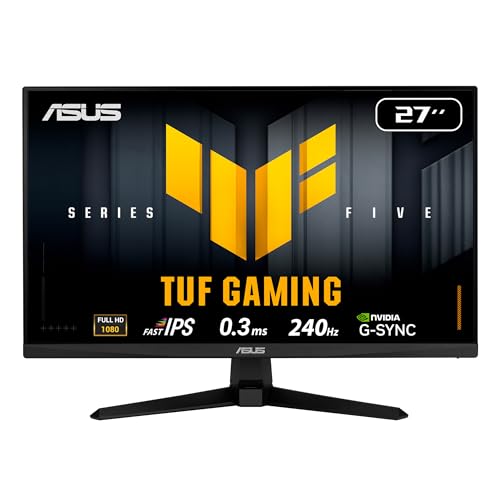
 ASUS TUF Gaming VG27AQ3A 27 Inch 1440p 180Hz14.4" x 24.2" x 2.1"24.2 x 8.4 x 17.9 inches10.1 poundsCheck on Amazon
 LG 45GX950A-B 45-inch Ultragear 5K2K WUHD45 inch13.46 x 39.04 x 26.2 inches30.86 poundsCheck on Amazon
 LG 39GX950B-B 39-inch UltraGear evo 5K2K OLED 165Hz12.7 x 36.3 x 23.8 inches23.6 poundsCheck on Amazon
Choose by the graphics card you own or plan to buy: a GeForce card works best with a G-Sync or G-Sync Compatible monitor, a Radeon card works best with a FreeSync monitor, and in practice most modern adaptive-sync monitors work acceptably with either brand. The label on the box matters less than the monitor’s variable refresh range, its certification tier and how it behaves at low frame rates.
The Short Answer
Both technologies do the same basic job. They let the monitor change its refresh rate to match the frame rate the graphics card is delivering, which removes screen tearing without the input delay and stutter of classic V-Sync. Differences are in certification, hardware inside the monitor and how strictly each tier is tested.
ASUS TUF Gaming VG27AQ3A 27 Inch 1440p 180Hz G-SYNC Gaming Monitor | Fast IPS, ELMB Sync, 1ms, 130% sRGB, Built-In Speakers, FreeSync Premium, HDR10, for PS5 and Xbox, 3yr warranty
Chosen because it specifies Fast IPS and ELMB Sync.
View on Amazon
KTC 27 Inch QHD 144Hz Gaming Monitor 2K 1440P FreeSync & G-Sync H27T27S | Eye Care, HDR10 PC Monitor for Office Gamers, HDMI & DP Ports, VESA Mountable, Tilt Adjustable
Chosen because it specifies Eye Care and HDR10 PC Monitor for Office Gamers.
View on AmazonLG 45GX950A-B 45-inch Ultragear 5K2K WUHD (5120 x 2160) OLED Curved Gaming Monitor, Dual-Mode, 165Hz, 0.03ms, NVIDIA G-Sync, AMD FreeSync Premium Pro, HDR True Black 400, USB Type-C 90W, DP2.1
Chosen because it specifies Dual-Mode and 165Hz.
View on AmazonLG 39GX950B-B 39-inch UltraGear evo 5K2K OLED 165Hz Curved Gaming Monitor | Dual-Mode (WUHD 165Hz/WFHD 330Hz), 0.03ms, NVIDIA G-Sync & FreeSync Premium Pro, DisplayHDR True Black 500, HDMI, DP, USB-C
Chosen because it specifies Dual-Mode (WUHD 165Hz/WFHD 330Hz) and 0.03ms.
View on Amazon- GeForce owner: look for G-Sync Compatible at minimum, or a full G-Sync tier if the budget allows.
- Radeon owner: look for a FreeSync Premium or Premium Pro label.
- Undecided or likely to switch brands: a monitor that carries both a FreeSync Premium label and G-Sync Compatible validation is the safest pick.
How Each Standard Works
FreeSync is AMD’s branding for adaptive refresh, built on the open VESA Adaptive-Sync standard for DisplayPort. Monitor makers do not need special hardware from AMD, which is why FreeSync screens appear across every price class. AMD sorts them into tiers, commonly FreeSync, FreeSync Premium and FreeSync Premium Pro, where the higher tiers add requirements such as low framerate compensation and HDR support.
NVIDIA lists three G-Sync tiers on its monitor page. G-Sync Ultimate and standard G-Sync use an NVIDIA processor inside the monitor, which the maker says enables variable refresh across the full range and variable overdrive. G-Sync Compatible monitors do not contain that processor. Instead NVIDIA validates them for tear-free, stutter-free operation without visible artifacts, and the maker describes this validation as a lighter process than the testing for the module-based tiers.
Comparison Table
| Tier | Hardware in monitor | Best for | Main limit |
|---|---|---|---|
| G-Sync Ultimate | NVIDIA processor, HDR focus | Premium HDR setups with a GeForce card | Limited model choice, premium tier |
| G-Sync (module) | NVIDIA processor | GeForce owners wanting full-range variable refresh and variable overdrive | Module-based screens tend to be fewer; generally tied to GeForce |
| G-Sync Compatible | No NVIDIA processor, validated by NVIDIA | GeForce owners on a normal budget | Behavior depends on the monitor’s own scaler and range |
| FreeSync | Standard Adaptive-Sync scaler | Budget Radeon builds | Range and low-rate handling vary a lot by model |
| FreeSync Premium / Premium Pro | Adaptive-Sync with extra requirements | Radeon owners and mixed-brand households | Premium Pro HDR quality still depends on the panel |
Step-by-Step: How to Choose
Step 1: Match the monitor to your graphics card brand
Write down which GPU you have. NVIDIA states that G-Sync Compatible monitors are validated to work with GeForce cards, and many FreeSync monitors that have not been validated can still be switched on manually in the NVIDIA control panel, although results vary and the maker does not guarantee a clean experience for unvalidated screens. A Radeon card runs FreeSync screens natively. Module-based G-Sync monitors are generally built around GeForce cards, so Radeon owners should treat them as a poor match.
Step 2: Decide on resolution and refresh rate first
The adaptive-sync label is secondary to panel choice. Pick the resolution (1080p, 1440p, 4K) and the maximum refresh rate your graphics card can realistically feed, then filter by tier. A 240Hz monitor paired with a card that delivers 90 frames per second in your games will not use most of that range.
Step 3: Read the variable refresh range
Every monitor has a minimum and maximum refresh rate where adaptive sync works. If frame rate drops below the minimum, the monitor either drops out of adaptive mode or uses low framerate compensation, which repeats frames to stay inside the range. Premium-level FreeSync tiers and G-Sync tiers are designed to handle this; basic FreeSync models may not. A wide range such as a low minimum up to the panel maximum is the useful signal.
Step 4: Check the connection
DisplayPort is the most reliable connection for adaptive sync on PC. HDMI can carry variable refresh too, mainly on screens with HDMI 2.1 support, but older HDMI ports on monitors often limit the range or do not support it. Check the monitor’s manual for which port enables the feature, and use the cable included or a certified one.
Step 5: Look at panel behavior, not only the badge
Reviewers at outlets such as RTINGS and Tom’s Hardware routinely measure flicker on VRR monitors, overdrive quality and response time at different refresh rates. OLED panels can show brightness flicker at low frame rates in adaptive mode, and some VA panels can show smearing. A tier badge does not tell you about these traits, so read a detailed review for the exact model.
Pick-If Table
| Pick this | If |
|---|---|
| G-Sync Compatible monitor | You use a GeForce card and want validated tear-free play without paying for a module |
| Module-based G-Sync or G-Sync Ultimate | You use a GeForce card, want variable overdrive across the range and are choosing among premium models |
| FreeSync Premium or Premium Pro | You use a Radeon card, or you may switch GPU brands later |
| Basic FreeSync | You have a tight budget, a modest GPU and have confirmed the refresh range in a review |
| Dual-labeled monitor | You want flexibility across both brands |
Common Mistakes
- Buying for the badge alone. Two monitors with the same label can behave differently at low frame rates.
- Using the wrong port. Plugging into an HDMI port that does not support variable refresh leaves the feature disabled.
- Forgetting to enable it. Adaptive sync often has an on-screen display switch and a driver setting; both may need to be on. Menu names vary by monitor maker, so follow the monitor manual.
- Combining V-Sync settings incorrectly. Many guides suggest enabling adaptive sync in the driver and using a frame cap slightly below the maximum refresh rate. Treat that as a starting point and follow your graphics driver’s documentation.
- Chasing refresh rate beyond the GPU. A very high refresh monitor is wasted if the card cannot deliver frames to match.
- Assuming a Radeon card will run a module-based G-Sync screen in variable mode. Read the monitor’s compatibility notes first.
Is G-Sync Better Than FreeSync?
Not as a blanket statement. The module-based G-Sync tiers offer a controlled, hardware-backed experience, and G-Sync Compatible gives a validation badge on a standard scaler. FreeSync covers a huge range of products from basic to well-regulated Premium Pro models. A good FreeSync Premium monitor with a wide range can match a G-Sync Compatible model in everyday play. The relevant question is which specific monitor has the best review for its panel, range and overdrive.
Alternatives to Consider
- Dual-validated monitors: models listing FreeSync Premium and G-Sync Compatible suit anyone who upgrades graphics cards regularly.
- HDMI 2.1 gaming televisions: useful for living-room PCs and consoles, though PC-oriented monitors generally give more granular control and lower input lag.
- No adaptive sync, locked frame rate: if your GPU always stays above the monitor refresh rate, a simple fixed-rate monitor with a frame cap can be acceptable, though you lose tear protection when frame rate dips.
Frequently Asked Questions
Can I use a FreeSync monitor with an NVIDIA card?
Yes in many cases. NVIDIA validates select FreeSync monitors as G-Sync Compatible, and those work automatically over DisplayPort. Unvalidated screens can often be enabled manually in the driver, but behavior depends on the monitor and is not guaranteed by the maker.
Can I use a G-Sync monitor with an AMD card?
Module-based G-Sync monitors are designed around NVIDIA hardware, so variable refresh generally will not work with a Radeon card. A G-Sync Compatible monitor is built on standard Adaptive-Sync and will often run in FreeSync mode on a Radeon card, but check the monitor’s documentation.
Do I need adaptive sync at 144Hz or higher?
It helps whenever frame rate fluctuates below the monitor’s maximum, which is common in demanding games. If your system holds a steady frame rate at or above the refresh rate, the benefit shrinks, though tearing protection still applies on dips.
What is low framerate compensation?
It is a feature that repeats frames when the frame rate falls below the monitor’s minimum variable refresh rate, keeping the display in adaptive mode. It generally requires a wide refresh range and is included in the higher FreeSync tiers and in G-Sync tiers.
Is DisplayPort required?
DisplayPort is the safest option. HDMI works for variable refresh on devices that support HDMI 2.1 or the relevant HDMI features, but older monitor HDMI ports may not support it, so read the manual for the exact port behavior.
Should I pay extra for a module-based G-Sync monitor?
Only if you value the variable overdrive and full-range behavior the maker describes and have settled on a GeForce card long term. For many buyers, a well-reviewed G-Sync Compatible or FreeSync Premium monitor covers the same everyday need at a lower tier.
FAQ
Is G-Sync Better Than FreeSync?
Can I use a FreeSync monitor with an NVIDIA card?
Can I use a G-Sync monitor with an AMD card?
Do I need adaptive sync at 144Hz or higher?
What is low framerate compensation?
Is DisplayPort required?
Should I pay extra for a module-based G-Sync monitor?
More from Amazon
Programs that pair well with the guide above. Offers and eligibility are set by Amazon and may change.
Free shipping on eligible items, Prime Video and more. Eligible new members can start with a free trial.
Start a Prime free trialAd-free music streaming. Eligible new subscribers can start with a free trial.
Try Music Unlimited freeA Prime membership for ages 18-24 with a trial period. Eligibility is set by Amazon.
See Prime for Young AdultsAudiobooks and podcasts to listen to on the go. Eligible new members can start with a free trial.
Try Audible freeAs an Amazon Associate we earn from qualifying purchases.