Our Top Picks
A nit is simply one candela per square metre, and for a gaming monitor it tells you how much light the screen can push out: roughly 250 to 350 nits is comfortable for everyday SDR gaming in a normal room, while HDR needs a panel that can briefly reach 600 nits or more before it looks meaningfully different from SDR.
Short Answer: What a Nit Measures
The nit is an informal name for the unit candela per square metre (cd/m2), the SI unit of luminance. A monitor spec sheet that says 400 nits and one that says 400 cd/m2 are describing the same thing. Reference material on the unit notes that sRGB monitors are defined around 80 cd/m2, studio SDR displays aim for about 100, consumer LCD screens commonly land in a few hundred, and HDR displays span a much wider range, from several hundred up to a couple of thousand.

UPERFECT Portable Monitor 4K 16" 1200 Nits, 145% sRGB Laptop Monitor | 3840*2400 UHD, 2000:1 Contrast, USB-C & MINI HDMI, VESA & Smart Case, Travel Screen for Computer, PC, Game Consoles
Chosen because it specifies 145% sRGB Laptop Monitor and 3840*2400 UHD.
View on Amazon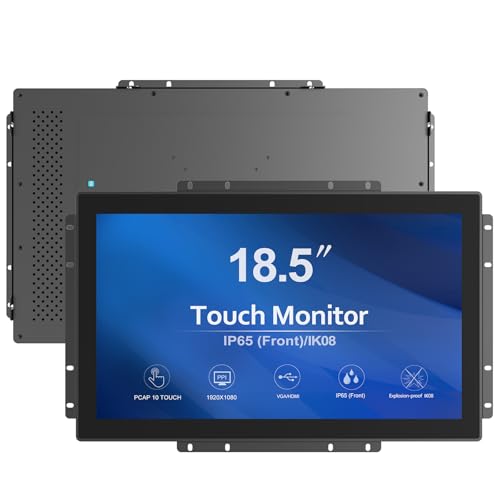
GreenTouch 1000 Nits High Brightness Industrial 18.5 Inch Open Frame Capacitive Touch Screen Monitor
Picked as a relevant option in this category.
View on Amazon
VSDISPLAY 15'' 1024x768 Industrial LCD Monitor 1000 Nits with H/D DVI VGA | High Brightness IPS Screen Outdoor Extra Display
Chosen because it specifies High Brightness IPS Screen Outdoor Extra Display.
View on Amazon
Lenovo L15 Portable Monitor, 15.6” Display, Full HD Resolution, IPS Panel, 250 nits Brightness, 60Hz Refresh Rate, USB-C Ports, Height-Adjustable Stand, Flicker-Free Technology, Grey
Chosen because it specifies 15.6” Display and Full HD Resolution.
View on AmazonMore nits means a brighter image, but the number alone does not tell you whether the picture is better. Contrast, black level, panel type and how the number was measured all change what you actually see.
Typical Brightness by Use
| Situation | Sensible brightness class | Why |
|---|---|---|
| Dark room, night gaming | Low (roughly 80 to 150 nits in the menu) | Bright panels in a dark room cause eye strain and wash out black levels |
| Normal lit room, SDR | Mid (a few hundred nits) | Matches the typical range of consumer LCD screens |
| Room with a window or lamp behind the screen | Upper mid to high SDR | Ambient light competes with the panel, so you need headroom |
| HDR games and video | Panel able to reach 600 nits or more in highlights | Highlights need to stand out from the SDR image |
SDR Brightness: How Much Is Enough
For standard dynamic range, the maximum brightness of the panel matters less than most box specs suggest. Most people run an SDR monitor well below its maximum. If a monitor can reach a few hundred nits at full backlight, that is enough for a typical bedroom or office. The extra headroom helps mainly in bright rooms, and also keeps the monitor from having to run at its absolute limit, where some panels lose a bit of contrast.
Setting brightness by the number in the on-screen menu is only a rough guide, because the menu scale is often 0 to 100 and not a direct nit reading. A better method is to compare the screen with a white sheet of paper next to it in the room: if the screen glows noticeably brighter than the paper, it is too bright for that space.
HDR Brightness: Where Nits Really Matter
HDR is where nit numbers become important, because HDR content is mastered with highlights far above SDR white. The VESA DisplayHDR program is the common yardstick. According to the program’s published criteria, the tiers are DisplayHDR 400, 500, 600, 1000 and 1400, with peak luminance targets matching those numbers, measured on an 8 percent centre patch of the screen. The tiers also include minimum colour gamut figures (99 percent of BT.709 across the tiers, 90 percent of DCI-P3 for the lower tiers and 95 percent for 1000 and 1400) and a 10-bit input signal requirement. The True Black tiers are aimed at OLED panels and list a black level of 0.0005 cd/m2.
| Tier (VESA) | Stated peak luminance | Practical meaning |
|---|---|---|
| DisplayHDR 400 | 400 nits | Entry-level; reviewers often say the HDR effect is limited |
| DisplayHDR 500 / 600 | 500 / 600 nits | Noticeable step up, especially with local dimming |
| DisplayHDR 1000 | 1000 nits | Strong highlights, usually needs good local dimming |
| DisplayHDR 1400 | 1400 nits | Top of the program, mostly premium displays |
| DisplayHDR True Black | OLED-class, black level 0.0005 cd/m2 | Perfect blacks compensate for lower peak numbers |
A DisplayHDR 400 label on a monitor without local dimming is a frequent complaint in reviews: the screen can get brighter, but the whole backlight rises together, so dark scenes turn grey instead of showing glowing highlights against black.
Peak Versus Sustained Brightness
Two numbers hide behind most HDR claims. Peak brightness is how bright a small area can get for a short time. Sustained (full-screen) brightness is how bright the whole screen can stay. OLED panels in particular usually reach their highest brightness only in small highlight windows and dim the image when a large part of the screen is bright, a behaviour often called automatic brightness limiting. Mini-LED backlit LCDs can sustain higher full-screen brightness but can show blooming around bright objects on dark backgrounds. Neither is automatically better; it depends on whether you play dark, high-contrast games or bright open-world titles.
Contrast and Black Level Matter as Much as Nits
Brightness is only one half of contrast. A monitor that reaches high nits but also raises its black level will look grey in the dark. This is why an OLED rated for fewer peak nits can look more impactful in HDR than a backlit LCD with a larger number, and why VESA lists black level requirements alongside luminance. When comparing monitors, look at the type of panel, the presence and zone count of local dimming, and the contrast ratio in the independent reviews, not only the headline nit value.
Decision Table: What Brightness Should You Look For
| Pick this if … | Look for |
|---|---|
| You game in a dim room mostly in SDR | Any modern monitor; brightness above a few hundred nits is rarely used |
| Your desk faces a bright window | Higher SDR brightness headroom and a matte or low-reflectivity coating |
| You want HDR to look different from SDR | DisplayHDR 600 or better, ideally with local dimming, or a True Black OLED |
| You play bright, full-screen scenes in HDR | An LCD with high sustained brightness, or review data on OLED full-screen limits |
| You mostly play competitive esports | Ignore peak HDR numbers; prioritise refresh rate and response time |
Common Mistakes
- Chasing the biggest number. A DisplayHDR 400 label and a 1000-nit label are not the same experience, and neither guarantees good contrast.
- Running the panel at 100 percent in a dark room. This is tiring and does not improve accuracy.
- Treating the menu percentage as nits. Menu values are relative to the monitor, not a calibrated reading.
- Ignoring Windows HDR settings. If HDR is enabled in the operating system but the monitor is weak, SDR content can look dull. Use the HDR toggle only when the monitor handles it well.
- Forgetting the coating. Glossy panels look punchier in a dark room but show reflections in bright rooms, which can cancel out the benefit of extra nits.
How to Set a Comfortable Brightness
- Reset the monitor to a standard or sRGB picture mode so the brightness slider is predictable.
- Turn off dynamic contrast or eco modes that change brightness on the fly.
- Set brightness while the room is lit the way it normally is during play.
- Lower it until a white window no longer looks brighter than the paper-and-lamp comparison described above.
- If your dark scenes look crushed, raise brightness or gamma slightly instead of lifting contrast.
Frequently Asked Questions
How many nits do I need for a gaming monitor?
For SDR in a normal room, a panel that reaches a few hundred nits is enough, and many players use it at well below maximum. If you want a meaningful HDR experience, reviewers and the VESA tiers point to 600 nits or more along with good local dimming or an OLED panel.
Is 400 nits good enough for HDR?
It meets the lowest DisplayHDR tier, but reviewers frequently describe the effect as modest, especially without local dimming. It is fine for bright SDR work and gaming, and acceptable if HDR is a side feature for you.
Are nits and lumens the same thing?
No. A nit is brightness per area of the screen surface, while lumens measure total light output, which is the figure used for projectors and lamps. Monitors are always specified in nits or cd/m2.
Why does my OLED look dimmer in bright scenes?
Many OLED monitors limit brightness when a large part of the image is bright to manage power and heat. The maker usually lists a peak figure for a small patch and a lower full-screen figure; the manual or spec sheet shows both.
Can too much brightness damage my eyes?
The evidence for permanent damage from normal monitor use is not strong, but a screen far brighter than the room can cause discomfort and eye fatigue. If you have persistent eye pain or headaches, speak to an eye care professional.
Does higher brightness shorten the life of a monitor?
Running any backlight or panel harder generally puts more stress on it, and OLED panels in particular are sensitive to long periods at high brightness with static content. Follow the maker’s guidance on burn-in care, and keep brightness at a level that suits the room.
FAQ
How many nits do I need for a gaming monitor?
Is 400 nits good enough for HDR?
Are nits and lumens the same thing?
Why does my OLED look dimmer in bright scenes?
Can too much brightness damage my eyes?
Does higher brightness shorten the life of a monitor?
More from Amazon
Programs that pair well with the guide above. Offers and eligibility are set by Amazon and may change.
Free shipping on eligible items, Prime Video and more. Eligible new members can start with a free trial.
Start a Prime free trialAd-free music streaming. Eligible new subscribers can start with a free trial.
Try Music Unlimited freeA Prime membership for ages 18-24 with a trial period. Eligibility is set by Amazon.
See Prime for Young AdultsAudiobooks and podcasts to listen to on the go. Eligible new members can start with a free trial.
Try Audible freeAs an Amazon Associate we earn from qualifying purchases.