Our Top Picks
For a desktop gaming PC, use DisplayPort on the graphics card in most cases, and use USB-C only when the monitor and the source both support DisplayPort Alternate Mode or USB4 and you want one cable that also carries power and data, as with a laptop. Both can show the same image, but they are built for different jobs, and the details of what each port supports matter more than the connector shape.
The Core Difference
DisplayPort is a dedicated video connection. USB-C is only a connector shape that can carry several things, one of which is DisplayPort video. When a monitor says it has a USB-C input with video, it normally means DisplayPort Alternate Mode, where some or all of the high-speed lanes in the cable are used to carry DisplayPort signals. Reference documentation on USB-C describes that Alternate Mode can use one, two or four lanes for DisplayPort, and when fewer than four are used the remaining lanes can carry USB 3.x data at the same time. USB4 and Thunderbolt can also tunnel DisplayPort signals.

DisplayPort to USB C Cable with Power, 4K@60Hz DP to USB-C Adapter 6FT | Touch Support, DP Male to Type-C Male Converter for Studio Display, XREAL Air, Nreal Air VR, Portable Monitor, PC
Chosen because it specifies 4K@60Hz DP to USB-C Adapter 6FT and Touch Support.
View on Amazon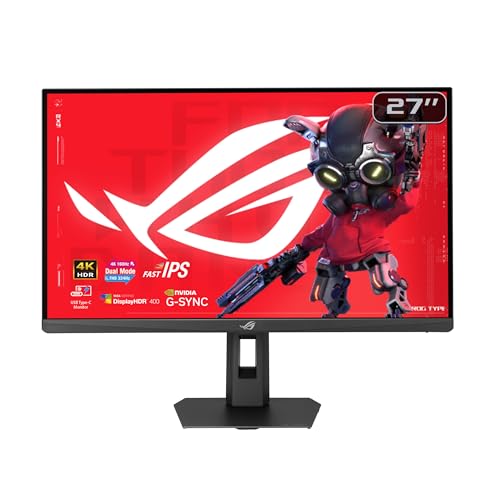
ASUS ROG XG27UCSR 27 Inch 4K 162Hz USB-C G-SYNC Gaming Monitor | Dual Mode FHD 324Hz, ELMB Sync, Smart Pixel technology, HDR, 95% DCI-P3, 0.03ms, for PS5 and Xbox
Chosen because it specifies Dual Mode FHD 324Hz and ELMB Sync.
View on Amazon
KTC 27 Inch 4K Gaming Monitor, UHD 160Hz 3840x2160 Fast IPS Compute Monitor | Adaptive Sync, HDR400, Height Pivot Swivel Tilt Adjustable Vertical Monitor, HDMI DisplayPort, U27T6
Chosen because it specifies UHD 160Hz 3840x2160 Fast IPS Compute Monitor and Adaptive Sync.
View on Amazon
MNN 17.3" QHD 165Hz USB-C HDMI Gaming Monitor | 17.3" QHD 165Hz IPS 100% sRGB, USB-C/HDMI, kickstand, slim metal, travel gaming for PC/Phone/PS5/Xbox.
Chosen because it specifies 17.3" QHD 165Hz IPS 100% sRGB and USB-C/HDMI.
View on AmazonThat means a USB-C port is not automatically a video port. Many laptops and phones have USB-C ports for data and charging only. The device maker’s specification sheet must state video output, DisplayPort Alt Mode, USB4 or Thunderbolt.
Quick Comparison
| Factor | DisplayPort | USB-C (DP Alt Mode / USB4) |
|---|---|---|
| Main purpose | Video and audio | Data, power and optionally video |
| Typical source | Desktop graphics card | Laptop, handheld PC, phone, some newer cards |
| Bandwidth for video | Full link, set by DP version | Depends on lane count and supported DP version |
| Extra functions | None | USB hub, charging, peripherals over one cable |
| Variable refresh rate | Widely supported | Supported when the DP signal and drivers allow it; varies by device |
| Cable pitfalls | Certification level | Cable rating, length, data-only cables |
| Best for | High refresh gaming from a desktop | Laptop docking, single-cable setups |
Bandwidth: Why DisplayPort Version Matters
Whether a connection can carry your resolution and refresh rate comes down to the DisplayPort version behind it. Reference figures list DisplayPort 1.4 at 32.4 Gbit/s link bandwidth, about 25.92 Gbit/s of usable data, with Display Stream Compression (DSC) support. DisplayPort 2.x adds UHBR modes at 40, 54 and 80 Gbit/s link rates (roughly 38.7, 52.2 and 77.4 Gbit/s of data).
On USB-C, the same DisplayPort data is carried in the cable. If the port dedicates all four lanes to video, the video bandwidth can match a full DisplayPort link of the version supported. If the port splits lanes to carry USB 3 data as well, video gets two lanes and the available bandwidth is cut, which can limit high refresh rates at high resolutions. This is why a monitor can offer 144 Hz or higher over its DisplayPort input but offer a lower limit, or a different mode, on its USB-C port. The monitor’s manual lists the supported modes per input.
Gaming Features
Variable refresh rate such as G-Sync Compatible and FreeSync is delivered through DisplayPort Adaptive-Sync, which is why DisplayPort is the safest path for those features. Over USB-C with DP Alt Mode the same signal can be used, but whether it works depends on the source device, its drivers and the monitor firmware. On a desktop graphics card the DisplayPort output is the direct and best-supported route. Some monitors also add features such as KVM switching or a built-in USB hub that only work when the USB-C or USB-B upstream is connected, so a gamer who also wants peripherals on the monitor may still connect USB for data and DisplayPort for video.
When USB-C Makes Sense
- Gaming laptops and handheld PCs. One cable can send video, charge the device and connect keyboard and mouse through the monitor’s hub, if the monitor and the laptop port both support it.
- Clean desk setups. One cable to the monitor instead of three.
- Work and play on the same screen. Switch between a work laptop and a gaming PC with input selection.
The monitor’s power delivery rating matters. Makers list the watts the USB-C port can supply, and a high-power gaming laptop may need more than the monitor offers, so it may still need its own charger.
When DisplayPort Is the Better Choice
- Desktop with a dedicated graphics card. The card’s DisplayPort outputs are designed for gaming monitors.
- Highest refresh rate or resolution. The full link bandwidth is available without lane sharing.
- Troubleshooting. Fewer variables than a multi-function USB-C link.
Decision Table
| Your setup | Use |
|---|---|
| Desktop PC, graphics card with DisplayPort output | DisplayPort |
| Gaming laptop with a USB-C port that lists DP Alt Mode or Thunderbolt | USB-C for convenience; DisplayPort or HDMI if the laptop has one and you need the top refresh rate |
| USB-C port that lists only data and charging | Not usable for video; use another port |
| Handheld gaming PC | USB-C if the monitor accepts it, plus a dock if needed |
| Need charging and peripherals through one cable | USB-C |
| Monitor’s USB-C is capped at a lower mode than its DisplayPort | DisplayPort for gaming, USB-C for work |
Common Mistakes
- Assuming any USB-C port outputs video. Read the port’s specification before buying a cable.
- Using a charging-only cable. Some USB-C cables carry power and slow data but not video. Use a cable rated for video, USB4 or Thunderbolt.
- Ignoring the monitor’s per-input limits. A monitor may offer a lower maximum refresh rate on USB-C than on DisplayPort.
- Buying an overly long cable. Long passive cables at high data rates can cause dropouts, black screens or flicker. Choose a certified cable of sensible length.
- Not enabling the right mode. Some monitors need a menu setting for the USB-C data mode versus video-priority mode. The manual shows the option name.
- Mixing up HDMI, DisplayPort and USB-C names. Marketing terms can hide which version is actually supported.
Cable Tips
For DisplayPort, look for a cable that states the version it supports, such as DP 1.4 certification or a DP 2.1 UHBR rating when you need those modes. For USB-C, pick a cable that lists video support and the data rate or Thunderbolt/USB4 rating. Use the cable that came with the monitor first, since makers generally include one tested for the monitor’s top mode.
Frequently Asked Questions
Is USB-C as good as DisplayPort for gaming?
It can be, when the port supports DisplayPort Alt Mode or USB4 and the monitor accepts the mode you want. DisplayPort is simpler and avoids lane sharing, so it is the more predictable choice for high refresh rates on a desktop.
Does USB-C support G-Sync or FreeSync?
Variable refresh rate depends on the DisplayPort signal inside the link, so it can work over USB-C if the source device, drivers and monitor support it. Support varies by product, so the monitor manual and device specifications are the places to confirm it.
Why is my refresh rate lower over USB-C?
The USB-C link may be using only two lanes for video so it can also carry USB data, or the monitor may cap that input at a lower mode. Check for a monitor menu option that prioritizes video over USB data, and read the manual for the per-input limits.
Can a USB-C port on my graphics card replace DisplayPort?
Some graphics cards include a USB-C style video output that carries DisplayPort signals. Whether it works with your monitor depends on the cable and the monitor’s USB-C input, so a standard DisplayPort cable is the simpler option if the card has one.
Do I need a special USB-C cable?
Yes, in practice. Pick a cable that explicitly lists video output, USB4 or Thunderbolt support. A basic charging cable may not carry video at all.
Can USB-C charge my laptop while it sends video?
Often yes, if the monitor supports USB-C power delivery. The monitor lists the maximum wattage, and a laptop that draws more than that may still need its own charger during gaming.
FAQ
Is USB-C as good as DisplayPort for gaming?
Does USB-C support G-Sync or FreeSync?
Why is my refresh rate lower over USB-C?
Can a USB-C port on my graphics card replace DisplayPort?
Do I need a special USB-C cable?
Can USB-C charge my laptop while it sends video?
More from Amazon
Programs that pair well with the guide above. Offers and eligibility are set by Amazon and may change.
Free shipping on eligible items, Prime Video and more. Eligible new members can start with a free trial.
Start a Prime free trialAd-free music streaming. Eligible new subscribers can start with a free trial.
Try Music Unlimited freeA Prime membership for ages 18-24 with a trial period. Eligibility is set by Amazon.
See Prime for Young AdultsAudiobooks and podcasts to listen to on the go. Eligible new members can start with a free trial.
Try Audible freeAs an Amazon Associate we earn from qualifying purchases.