Key takeaways
- Set 2.4 GHz to 20 MHz width and channel 1, 6, or 11. Widening it to 40 MHz overlaps neighbors and makes congestion worse, not better.
- Leave 5 GHz and 6 GHz at 80 MHz unless you’re in a detached house. 160 MHz gives short bursts of speed but is far more prone to interference and DFS radar events.
- Disable band steering only if devices misbehave. Most current mesh systems steer better than manual SSIDs, but old IoT gear sometimes needs a dedicated 2.4 GHz SSID.
- Place nodes at 25–35 ft line-of-sight, not at the far corners. Nodes at the edges of coverage relay a weak signal badly; closer spacing with a stronger link performs better.
- Keep nodes out of cabinets and off the floor. Metal, water, and concrete are the three biggest signal killers; a node inside a media cabinet can lose half its range.
Best Routers for Large Homes: Matching Coverage to Your Floor Plan
The best routers for large homes in 2026 are tri-band Wi-Fi 7 mesh systems with wired backhaul — typically a three-pack covering 5,000–7,000 sq ft — because no single router, however powerful, reliably pushes 5 GHz or 6 GHz signal through two or more interior walls and a floor. If your home is under about 3,000 sq ft on one level, a single high-end router still wins on price and simplicity; above that, plan on mesh nodes, and run Ethernet between them wherever you can.
Coverage claims on retail boxes are measured in open space, so treat them as ceilings, not promises. The sections below map square footage, floor count, wall materials, device count, backhaul type, and your actual internet speed to a specific class of hardware.
Quick comparison: four picks by situation
| Pick (class) | Best for | Key specs | Typical price |
|---|---|---|---|
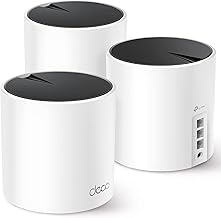
| Tri-band Wi-Fi 7 mesh, 3-pack (e.g. TP-Link Deco BE-series, Netgear Orbi 970-class, Asus ZenWiFi BQ16-class) | 4,000–7,000 sq ft, 2–3 floors, 40+ devices | 6 GHz + 5 GHz + 2.4 GHz; 2.5–10 GbE ports; dedicated wireless backhaul radio | Usually $500–$1,200 |
| Dual-band Wi-Fi 7 mesh, 2–3 pack | 2,500–4,500 sq ft, 1–2 floors, gigabit internet | 5 GHz + 2.4 GHz; 2.5 GbE WAN; no dedicated backhaul radio | Usually $200–$450 |
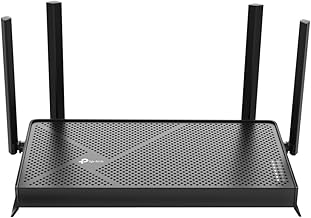
| Single flagship Wi-Fi 7 router (e.g. Asus RT-BE96U-class, TP-Link Archer BE800-class) | Up to ~3,000 sq ft, single floor, central placement possible | Tri-band; 2.5–10 GbE WAN/LAN; 4–8 external antennas | Usually $300–$700 |
| Whole-home mesh with 2.5G/10G wired backhaul (business-class APs or prosumer mesh) | 5,000+ sq ft, 3+ floors, pre-wired home or willing to run cable | PoE access points, controller software, VLAN support | Usually $600–$1,500 installed |
Prices vary with sales cycles and configuration; the ranges above reflect general market positioning rather than a specific retailer.
Best overall for most large homes: tri-band Wi-Fi 7 mesh, three nodes
Wi-Fi 7’s headline feature for big houses isn’t raw speed — it’s Multi-Link Operation (MLO), which lets a client use two bands simultaneously, and the 6 GHz band, which is comparatively empty. A tri-band mesh pack uses one radio as a dedicated wireless backhaul, so node-to-node traffic doesn’t compete with your devices.
Who it suits: 4,000–7,000 sq ft over two or three floors, 40–100 connected devices, and an internet plan of 1 Gbps or faster. Main trade-off: cost, plus the fact that wireless backhaul degrades with distance — expect roughly half of the router-to-node link rate to reach the far node, so a node behind two brick walls may deliver 300–500 Mbps even on a 2 Gbps plan.
Best budget option: dual-band Wi-Fi 7 mesh
If your internet is 1 Gbps or slower and your home is under about 4,500 sq ft, dual-band mesh is the rational buy. You give up the 6 GHz radio and dedicated backhaul, so every node halves its usable throughput when relaying. In practice that’s fine for streaming and video calls; it’s not fine for 4K editing over a network share.
Trade-off to accept: with no dedicated backhaul radio, each hop roughly cuts throughput. Two nodes placed one hop apart usually outperform three nodes chained in a line.
Best single router: only if you can place it centrally
A flagship tri-band router can cover 3,000 sq ft — but only from a central, elevated, unobstructed position. Placed in a corner basement next to a metal furnace duct, the same hardware may cover 1,200 sq ft. If you can’t centralize it, spend the money on mesh instead.
Best for wired homes: mesh or access points with Ethernet backhaul
This is the highest-value upgrade nobody markets. Ethernet backhaul between nodes removes the throughput penalty entirely and drops latency by roughly half versus wireless relay in most published comparisons. If you have coax in the walls, MoCA 2.5 adapters turn it into a 2.5 Gbps backbone; if you have neither, powerline is a distant third and should be a last resort.
How to choose: work the numbers first
1. Estimate your real square footage per floor, not total
A 3,000 sq ft two-story home is 1,500 sq ft per floor. Radio coverage is roughly a sphere around each node, so vertical distance matters as much as horizontal. Rule of thumb: 1,500–2,000 sq ft per node on an open floor, but only 800–1,200 sq ft per node once you’re passing through two or more drywall walls, and 400–700 sq ft per node through brick, stone, or a plaster-and-lath wall.
2. Subtract for wall materials
Concrete, brick, stone, tile, and foil-backed insulation each cost you roughly 6–12 dB of signal at 5 GHz and more at 6 GHz — and higher frequencies lose more. A 6 GHz signal that’s excellent in an open-plan living room may be unusable one brick wall away, which is why 2.4 GHz still matters for outbuildings, garages, and smart-home sensors.
3. Count your devices, then multiply by 1.5
Smart plugs, bulbs, cameras, doorbells, thermostats, and TVs all hold associations. A practical planning figure is 50 associated devices per Wi-Fi 7 node and 25–30 per Wi-Fi 6 node. If you’re at 60 devices, a two-node system is a stretch; three nodes give you headroom and let cheap IoT gear sit on 2.4 GHz.
4. Check whether your internet speed is the bottleneck
Do the arithmetic before buying multi-gig gear. A 4K HDR stream runs roughly 15–25 Mbps; eight simultaneous streams is about 200 Mbps. Add 50 Mbps for video calls, 100 Mbps for cloud gaming, and 200 Mbps for large downloads. A typical heavy household lands near 600–700 Mbps, which means a 1 Gbps plan with a 2.5 GbE port router is plenty. Multi-gig WAN only pays off if you actually subscribe to 2 Gbps or faster and move large files.
5. Decide on backhaul before you buy
Wired backhaul beats wireless every time. Wireless backhaul requires either a dedicated radio (tri-band and above) or a shared one (dual-band, with a throughput penalty). MLO in Wi-Fi 7 improves wireless backhaul, but it does not match a cable.
Decision matrix: your situation → your pick
| Situation | Recommended class | Why |
|---|---|---|
| < 3,000 sq ft, one floor, central placement | Single tri-band Wi-Fi 7 router | Mesh adds cost and roaming complexity with no coverage benefit |
| 3,000–4,500 sq ft, two floors, drywall | Dual-band or tri-band 2-pack | One node per floor; Ethernet backhaul if walls allow |
| 4,500–7,000 sq ft, three floors | Tri-band 3-pack with dedicated backhaul | Dedicated radio keeps node-to-node traffic off client bands |
| Brick/stone construction or foil insulation | Mesh with wired or MoCA backhaul | Wireless relay between hard walls loses most of its rate |
| 60+ devices, many IoT | Tri-band mesh, 3 nodes, VLAN or guest IoT SSID | Band and SSID separation prevents 2.4 GHz congestion |
| Detached garage or outbuilding | Dedicated point-to-point bridge or outdoor AP | Indoor mesh nodes won’t penetrate exterior walls reliably |
Settings that matter more than the spec sheet
- Set 2.4 GHz to 20 MHz width and channel 1, 6, or 11. Widening it to 40 MHz overlaps neighbors and makes congestion worse, not better.
- Leave 5 GHz and 6 GHz at 80 MHz unless you’re in a detached house. 160 MHz gives short bursts of speed but is far more prone to interference and DFS radar events.
- Disable band steering only if devices misbehave. Most current mesh systems steer better than manual SSIDs, but old IoT gear sometimes needs a dedicated 2.4 GHz SSID.
- Place nodes at 25–35 ft line-of-sight, not at the far corners. Nodes at the edges of coverage relay a weak signal badly; closer spacing with a stronger link performs better.
- Keep nodes out of cabinets and off the floor. Metal, water, and concrete are the three biggest signal killers; a node inside a media cabinet can lose half its range.
Frequently Asked Questions
How many mesh nodes do I need for a 5,000 sq ft house?
Plan on three nodes for a typical 5,000 sq ft two-story home with drywall walls, and four if construction is brick or stone, or if the layout is long and narrow. Space them roughly 25–35 feet apart with as much line-of-sight as possible between nodes, and put at least one node per floor on multi-story homes.
Is Wi-Fi 7 worth it for a large home in 2026?
Yes, mainly for the 6 GHz band and Multi-Link Operation rather than peak throughput. In a large home, the benefit is less congestion and better backhaul stability. If your internet plan is under 1 Gbps and your device count is low, a good Wi-Fi 6 or 6E mesh still delivers most of the real-world experience for less money.
Does a mesh system slow down my internet speed?
Only on wireless backhaul. A node that relays wirelessly typically delivers about half of the router’s link rate to clients behind it; with a dedicated backhaul radio the penalty is smaller, and with Ethernet backhaul there is effectively no penalty. Wired nodes usually match or beat a single router’s throughput at the same distance.
Will one powerful router cover 4,000 square feet?
Rarely in real conditions. Manufacturer coverage figures are measured in open space; through two interior walls, a single router’s usable 5 GHz range often drops to about 1,500–2,000 sq ft. A single router can work in a 4,000 sq ft open-plan home with central placement, but mesh is the safer choice for a conventional floor plan.
What is the difference between wired and wireless backhaul?
Wired backhaul connects nodes with Ethernet or MoCA coax, giving each node full throughput and lower latency. Wireless backhaul uses a radio — dedicated on tri-band systems, shared on dual-band systems — which is easier to install but loses throughput over distance and through walls. If you can run cable during a renovation, do it.
Do thick walls really affect router performance that much?
Yes. Brick, stone, concrete, and foil-backed insulation can each attenuate 5 GHz and 6 GHz signals by roughly 6–12 dB per wall, and higher frequencies suffer more. That’s why 2.4 GHz remains useful for long-range and low-bandwidth devices like smart sensors and doorbells, even in a Wi-Fi 7 system.