Key takeaways
- On Windows: Open the Command Prompt as an administrator. Type
chkdsk E: /f(replace “E:” with the actual drive letter assigned to your Micro SD card) and press Enter. This utility will scan the card’s sectors and attempt to fix directory errors. - On macOS: Open Disk Utility, select your Micro SD card from the left-hand sidebar, click “First Aid” at the top of the window, and select “Run.”
Setting up a dedicated gaming corner in your home is one of the most satisfying projects for any retro enthusiast. But nothing ruins a relaxing evening of nostalgic gaming like turning on your favorite handheld console only to be greeted by a frozen screen, missing game libraries, or a dreaded “no card detected” error. Micro SD card corruption is the single most common issue plaguing the retro handheld community.
If you approach this repair poorly, you risk permanently losing dozens of hours of custom RPG save states, corrupting your console’s delicate custom firmware, or even physically damaging the spring-loaded card slot on your device. Fortunately, fixing a corrupted storage card is a straightforward process when done systematically. As we look at the retro gaming landscape in 2026, handheld consoles have become incredibly sophisticated, but they still rely on the same fragile flash memory technology. This guide will walk you through rescuing your data, formatting your card properly, and setting up a stable system that will not fail you mid-game.
Our top picks
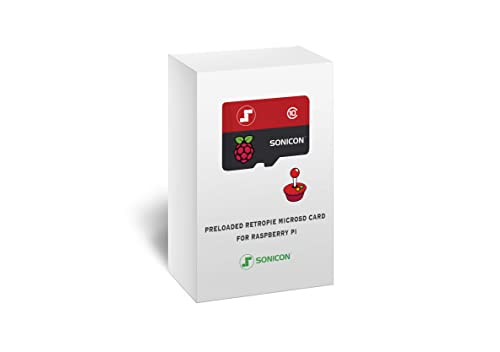 Sonicon Preloaded RetroPie Emulation Station Emulator MicroSD
- Handpicked and Configured - Plug and Play for…
- Full Collection - Full Library of 10 Systems…
- Customized Retro Look - Specially Designed Packaging and…
 Micro Center 64GB microSDXC Card 2 Pack
- Micro SD Card 64GB 2 pack
- 4K UHD Capable and Full HD Ready with…
- Rated Application Class 1 (A1) for faster app…
As an Amazon Associate we earn from qualifying purchases at no extra cost to you.
What You Need
Before you begin the recovery and formatting process, gather the necessary tools. Having a reliable physical connection between your tiny storage media and your computer is critical to preventing further data loss during the repair.
| Item | Why You Need It | Optional? |
|---|---|---|
| Micro SD Card Reader | Connects your card to your computer. A high-quality USB 3.0 or Type-C reader (weighing under 1 ounce, typically costing $8 to $15) prevents data transfer dropouts. | No |
| Computer (PC or Mac) | Needed to run partition managers, disk check utilities, and file transfer operations. | No |
| Reliable Replacement Card | Generic cards bundled with cheap consoles fail constantly. A high-speed option like the Micro Center 64GB microSDXC Card 2 Pack (Nintendo-Switch Compatible, UHS-I C10 U3 V30 A1, R/W speed up to 95/30 MB/s, price $43.99) ensures long-term stability. | Yes (Highly Recommended) |
| Preloaded OS/Emulator Card | If you do not want to build your firmware and ROM library from scratch, a ready-to-go solution like the Sonicon Preloaded RetroPie Emulation Station Emulator MicroSD Card (64GB, for Raspberry Pi3, 3B+, price $44.99) saves hours of configuration. | Yes |
| Formatting Software | Utilities like GUIFormat (for Windows) or SD Card Formatter ensure the card is partitioned correctly. | No |
Step-by-Step
Follow these steps in order. Skipping ahead to formatting before trying to rescue your existing files can result in the permanent loss of your game save files.
1. Isolate and Backup Existing Data
Estimated Time: 10–15 minutes
Turn off your retro handheld completely before removing the Micro SD card. Never pull the card out while the device is in sleep mode, as this is a primary cause of corruption. Insert the tiny 15mm x 11mm card into your card reader, and plug it into your computer.
If your computer recognizes the drive, immediately open it and copy the folders labeled “Roms,” “Saves,” “States,” and “BIOS” to a secure folder on your computer’s desktop. Even if some files are unreadable, copying whatever you can salvage now will save you from losing your game progress later.
2. Run a Disk Utility Repair
Estimated Time: 5–10 minutes
Sometimes, the file allocation table is simply misplaced rather than physically damaged. You can attempt a software repair before erasing the card.
- On Windows: Open the Command Prompt as an administrator. Type
chkdsk E: /f(replace “E:” with the actual drive letter assigned to your Micro SD card) and press Enter. This utility will scan the card’s sectors and attempt to fix directory errors. - On macOS: Open Disk Utility, select your Micro SD card from the left-hand sidebar, click “First Aid” at the top of the window, and select “Run.”
If the utility successfully repairs the drive, eject it safely, insert it back into your handheld, and test if it boots. If errors persist, move to the next step.
3. Perform a Full, Clean Format
Estimated Time: 10 minutes
If the card remains unstable, you must wipe it. Standard system formatters built into Windows often fail to format cards larger than 32GB into the FAT32 file system, which most retro handheld systems require.
Download a dedicated tool like GUIFormat (FAT32 Format) or the official SD Association Card Formatter. Open the software, select your card reader drive, set the allocation unit size to 32768 (32KB), and uncheck “Quick Format” if you suspect deep sector corruption. Run the tool. A full format will scan every sector of the card to ensure it is healthy enough to receive new files.
4. Flash the Firmware or OS
Estimated Time: 15–20 minutes
A clean format leaves you with an empty card, meaning your handheld will not boot without its operating system. You must re-install your console’s custom firmware (such as OnionOS, ArkOS, or AmberELEC).
Download the official firmware image file (.img or .iso) for your specific console model. Use an imaging tool like BalenaEtcher or Rufus to flash the image file onto your newly formatted card. Do not simply drag and drop the image file onto the card; the flashing tool must create the hidden boot partitions your handheld needs to start up.
5. Restore ROMs and Save Files
Estimated Time: 10–15 minutes
Once the firmware flashing is complete, safely eject the card and insert it into your handheld console. Turn the console on. This initial boot allows the system to automatically generate the correct folder structures (such as separating NES, SNES, Genesis, and PlayStation directories).
Turn the console off, remove the card, and plug it back into your computer. Copy the backup “Roms” and “Saves” folders you saved in Step 1 back into their respective newly created directories on the card. Safely eject the card, insert it into your handheld, and enjoy your revived gaming setup.
Mistakes to Avoid
- Using the Unbranded Stock Card: The generic, unlabelled Micro SD cards shipped with budget retro handhelds have a near 100% failure rate. They are constructed from discarded, low-grade flash memory chips that corrupt after only a few read/write cycles. Always replace them immediately with a reliable brand.
- Improper System Shutdowns: Simply holding down the physical power button to force-close a game can interrupt background save processes. Always use the software menu to shut down the system gracefully.
- Formatting to NTFS: Windows defaults to NTFS or exFAT for large drives. However, many Linux-based retro operating systems cannot read NTFS partitions, leading to boot loops or “Card Not Found” errors. Always stick to FAT32 or the system-specified format.
- Using Cheap USB Hubs: Plugging your card reader into a cheap, unpowered USB hub can cause power fluctuations during the flashing process, which can permanently brick your Micro SD card. Plug your reader directly into your computer’s motherboard or main USB ports.
How Often
To keep your retro handheld running smoothly, perform a digital “tune-up” periodically. You should back up your “Saves” folder to your computer or cloud storage once every month, especially if you are playing long RPGs. If you play your handheld daily, consider completely re-imaging and formatting your card once a year to clear out fragmented cache files and keep load times fast.
When to Call a Pro or Replace
If your computer refuses to recognize the Micro SD card at all, or if formatting tools display a “Write Protected” error that cannot be cleared, the card’s internal controller has locked itself permanently to prevent physical overheating. When this happens, the card cannot be saved and must be replaced.
If you try multiple high-quality cards and your handheld still fails to boot or read files, the physical spring-loaded reader inside the console may have broken pins or cold solder joints. In this scenario, you will need to contact the manufacturer for a replacement mainboard, or use a pre-configured solution to rule out software configuration errors entirely.
FAQ
Why does my retro handheld card corrupt so easily compared to my phone’s card?
Retro handhelds constantly read and write tiny files, such as auto-save states and cover art caches, often using open-source Linux operating systems that do not have the same robust write-protection protocols as modern smartphones or tablets. Additionally, cheap stock cards packaged with these devices lack basic wear-leveling technology.
Can I copy files directly to my console using a USB cable instead of removing the card?
Yes, many modern Android and Linux-based handhelds support FTP transfer or direct USB mounting. This is highly recommended for small transfers because it reduces physical wear and tear on the console’s delicate, spring-loaded Micro SD card slot.
What is the difference between a quick format and a full format?
A quick format simply deletes the file directory pathway, making the card appear empty while leaving the actual data on the drive until it is overwritten. A full format scans every individual sector on the card for physical and logical errors, making it the only reliable choice when dealing with recurring corruption issues.
Will a larger Micro SD card make my games load faster?
No. Game load times are determined by the read speed class of the card (such as U3 or V30) and the processing power of your handheld. A larger capacity card (such as 256GB or 512GB) simply allows you to store more games and larger CD-based system files, but it will not boost in-game performance.