Key takeaways
- The best gaming wi fi 7 routers for low latency performance are the ASUS ROG Rapture GT-BE98 for maximum wired capacity, the NETGEAR Nighthawk RS700S for a fast single-router setup, and the TP-Link Deco BE85 for large homes that need…
The best gaming wi fi 7 routers for low latency performance are the ASUS ROG Rapture GT-BE98 for maximum wired capacity, the NETGEAR Nighthawk RS700S for a fast single-router setup, and the TP-Link Deco BE85 for large homes that need consistent mesh coverage.
Wi-Fi 7 cannot eliminate lag caused by a distant game server or an overloaded broadband connection, but it can reduce local airtime contention, improve wireless backhaul, and keep several players, streams, and downloads from fighting for the same queue. The right choice depends less on the highest advertised wireless number than on room size, client compatibility, Ethernet layout, and the router’s ability to manage upload congestion.
Quick comparison: which Wi-Fi 7 gaming router fits?
| Router | Best use | Wireless class | Useful wired capacity | Typical market range |
|---|---|---|---|---|
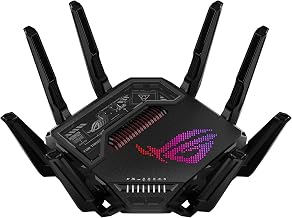
| ASUS ROG Rapture GT-BE98 | Competitive gaming and multi-gig wired networks | Quad-band Wi-Fi 7, up to BE25000 class | Multiple 10Gbps ports plus 2.5Gbps ports | Usually $600–$800 |
| NETGEAR Nighthawk RS700S | High-performance single-router coverage | Tri-band Wi-Fi 7, up to BE19000 class | 10Gbps Internet/LAN capability plus multi-gig LAN | Usually $500–$700 |
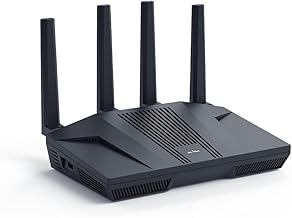
| TP-Link Archer BE800 | Fast home networks with flexible Ethernet | Tri-band Wi-Fi 7, up to BE19000 class | Two 10Gbps ports and additional multi-gig connectivity | Usually $400–$600 |
| TP-Link Deco BE85 | Large homes and wireless mesh expansion | Tri-band Wi-Fi 7 mesh, up to BE22000 class | 10Gbps Ethernet on each node | Usually $700–$1,200 per two-pack |
| Amazon eero Max 7 | Simple whole-home mesh management | Tri-band Wi-Fi 7, up to BE20800 class | Two 10Gbps Ethernet ports per unit | Usually $500–$1,000 depending on pack size |
Best overall for serious gaming: ASUS ROG Rapture GT-BE98
The GT-BE98 is the strongest choice when the gaming PC, console, access points, and NAS can use Ethernet. Its quad-band design provides more radio capacity than a typical tri-band router, while its 10Gbps ports suit homes with multi-gig Internet or a fast wired backbone.
Its gaming features are more extensive than those on most consumer routers. Game-device prioritization, adaptive QoS, gaming acceleration, and network monitoring can help identify whether a delay comes from the local network, the ISP, or the game server. These controls are useful only when configured carefully: prioritizing every device defeats the purpose of prioritization.
For the lowest latency, connect the main gaming system to a 2.5Gbps or 10Gbps LAN port, reserve its IP address, and give it a high-priority QoS rule. Use the extra wireless band for mesh backhaul or less latency-sensitive devices rather than placing every phone and smart-home device on the gaming band.
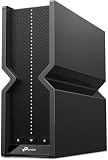
Best single-router option: NETGEAR Nighthawk RS700S
The Nighthawk RS700S is a strong fit for a medium or large home where one centrally placed router can reach the gaming room. Its tri-band Wi-Fi 7 design supports 320MHz channels and Multi-Link Operation on compatible clients, while the upright form factor is easier to position in an open area than many gaming routers.
It is particularly attractive when the network needs high throughput without the visual complexity of a multi-node mesh. A Wi-Fi 7 laptop or phone can use multiple links when supported by the client and network configuration, but an older Wi-Fi 6 console will not suddenly gain Wi-Fi 7 latency characteristics. For that console, a wired connection remains preferable.
NETGEAR’s traffic-management tools can prioritize applications and devices, but check whether the feature requires a subscription in your region before buying. If you mainly want low bufferbloat, compare the available QoS controls with your broadband speed rather than paying for features you will not use.
Best value for multi-gig Ethernet: TP-Link Archer BE800
The Archer BE800 is a practical head-to-head alternative to the more expensive gaming-branded models. Its two 10Gbps ports make it easy to connect a multi-gig modem, a gaming desktop, and a switch without immediately adding another device. That matters because a wired 2.5Gbps connection usually gives more predictable latency than a fast wireless link in a congested room.
Its HomeShield tools provide device prioritization, parental controls, and security features. The main limitation is that some advanced controls may be tied to a paid service tier. The BE800 makes the most sense for a home with one primary gaming area, a few multi-gig devices, and no need for the GT-BE98’s extra radio.
Best for large homes: TP-Link Deco BE85
The Deco BE85 is the better choice when distance, walls, or multiple floors make a single router unreliable. Each node has 10Gbps Ethernet, so the system can use wired backhaul between rooms instead of consuming wireless airtime to carry mesh traffic.
Use Ethernet backhaul whenever possible. With a wired connection between nodes, a nearby wireless gaming client communicates over one local wireless hop rather than sending traffic from the client to a distant node and then across another wireless hop. That can reduce jitter even if the speed test result looks similar.
For a two-story home of approximately 2,000–3,500 square feet, a two-node system is often a more sensible starting point than placing one powerful router at the edge of the house. Actual coverage depends on construction: reinforced concrete, foil-backed insulation, and dense masonry can reduce usable range sharply.
Best for simple mesh management: eero Max 7
The eero Max 7 is aimed at people who want multi-gig mesh coverage with minimal manual tuning. It has 10Gbps Ethernet on each unit and can provide excellent room-to-room consistency when nodes are placed correctly, especially with wired backhaul.
Its trade-off is control. Enthusiasts who want detailed channel selection, extensive gaming rules, or granular radio settings may prefer ASUS, TP-Link, or NETGEAR. It is a good match when reliable roaming and easy setup matter more than exposing every advanced option.
Real-world latency: what the numbers mean
Router advertisements quote maximum link rates, not game ping. A 2ms local-network improvement is valuable when it also removes jitter, but it will not compensate for a 60ms route to a distant server. The most important measurements are idle latency, latency while downloading, and latency while uploading.
| Network condition | Healthy target | What it indicates |
|---|---|---|
| Idle ping to the router | Under 5ms on Ethernet; commonly 3–15ms on nearby Wi-Fi | Local link quality and wireless contention |
| Ping while downloading | Increase of roughly 5–20ms | Good queue management or lightly loaded connection |
| Ping while uploading | Increase below about 20–30ms | Effective upstream QoS or smart queue management |
| Packet loss during normal use | 0% sustained loss | Higher loss matters more than a small throughput difference |
These are practical targets rather than guarantees. Test with a wired computer first, then repeat over Wi-Fi from the gaming position. If wired latency also rises dramatically under load, changing routers may not solve the problem; the broadband connection needs active queue management, an appropriate upload limit, or ISP attention.
How to configure a Wi-Fi 7 router for low latency
1. Use wired backhaul and Ethernet where available
Connect the gaming PC or console directly to the router or nearest mesh node. For mesh systems, run Ethernet between nodes if the home has cabling. A 1Gbps wired backhaul is usually preferable to a heavily loaded wireless backhaul for gaming consistency.
2. Set QoS below the real broadband rate
Measure the connection several times when the network is quiet. If the result is 940Mbps down and 40Mbps up, start QoS shaping around 850Mbps down and 34–36Mbps up. The calculation is simple: 40Mbps × 0.90 = 36Mbps. This leaves a small queue outside the modem or router, where the QoS system can control it. Reduce the limit further if latency still spikes.
3. Prioritize the right device, not every device
Give the console or gaming PC high priority, then leave video calls and work devices at normal priority. A game usually needs little bandwidth—often well under 1Mbps during play—but it is sensitive to delay and packet loss. A large cloud backup can consume the entire upstream queue even though the game itself uses very little data.
4. Choose bands based on distance
Use the 6GHz band for a nearby Wi-Fi 7 client with clear line of sight. Its wider channels can deliver excellent local performance, but 6GHz attenuates more quickly through walls than 5GHz. Use 5GHz for a room separated by several walls, and do not force a distant client onto 6GHz simply because its theoretical speed is higher.
5. Tune channel width for stability
Start with 160MHz on 5GHz or 320MHz on 6GHz only where the spectrum is clean and the client supports it. In apartments or dense neighborhoods, 80MHz or 160MHz may produce lower jitter than an unstable 320MHz channel. Automatic band steering is usually a good default, but create a separate gaming SSID only if the router’s steering repeatedly moves the gaming device to an unsuitable band.
Buying decision matrix
| Your situation | Best fit | Why |
|---|---|---|
| One gaming room, multi-gig Ethernet, advanced controls | ASUS ROG Rapture GT-BE98 | High wired capacity and extensive QoS and gaming tools |
| One router must cover a medium or large home | NETGEAR Nighthawk RS700S | Strong tri-band design and straightforward single-unit deployment |
| Need two 10Gbps links without a premium gaming interface | TP-Link Archer BE800 | Flexible Ethernet and capable traffic management |
| Several floors or difficult walls | TP-Link Deco BE85 | Mesh coverage with 10Gbps wired backhaul options |
| Prefer easy setup over detailed tuning | eero Max 7 | Simple mesh administration and strong multi-gig ports |
For most players, the best purchase is the model that lets the gaming device use Ethernet or a nearby, lightly congested access point. Buy the GT-BE98 or BE800 for a wired multi-gig network, choose the RS700S for a clean single-router installation, and choose the Deco BE85 or eero Max 7 when whole-home coverage is the real source of inconsistent latency.