Key takeaways
- Using Cheap, Generic Bluetooth Dongles: Avoid unbranded $5 USB Bluetooth keys. They often use outdated Bluetooth 2.1 or 3.0 hardware with terrible shielding, which severely limits bandwidth and causes frequent packet drops.
- Over-Allocating Run-Ahead Frames: Setting your emulator’s run-ahead to 4 or more frames will cause audio crackling, visual teleportation, and massive CPU bottlenecks, especially on low-powered devices like single-board computers.
- Leaving Other Bluetooth Devices Active: Running wireless headphones, a smartwatch, and a wireless keyboard on the same cheap Bluetooth receiver simultaneously will choke the available bandwidth, spiking your controller’s latency.
- Neglecting Display “Game Mode”: Forgetting to toggle Game Mode on your television or high-end monitor is the most common reason gamers experience persistent input lag, regardless of how well their controller is configured.
Few things are as frustrating to a gaming enthusiast as lining up a pixel-perfect jump in a classic platformer or executing a frame-tight counter in a fighting game, only to watch your character react a fraction of a second too late. Wireless convenience is wonderful, but input lag can quickly ruin the nostalgic magic of retro gaming. When you play games via an emulator, the signal must travel from your gamepad, through the air, into your operating system’s Bluetooth stack, and finally through the emulator’s translation layer before rendering on your screen. This long chain introduces multiple points where latency can pile up.
If you attempt to solve this issue haphazardly—such as blindly editing registry files, overclocking your USB ports beyond safe parameters, or installing unverified third-party driver packages—you risk corrupting your operating system’s wireless stack. This can lead to permanent pairing failures, system instability, or rendering your controller completely unresponsive. Fortunately, learning how to fix input delay on bluetooth emulation controller setups is a straightforward process when approached systematically. By isolating physical interference, updating firmware, and configuring your emulator’s video pipeline, you can reduce latency down to imperceptible levels.
Our top picks
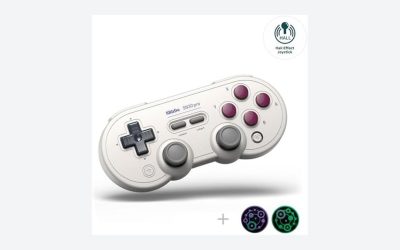
 8BitDo SN30 Pro Bluetooth Controller with Hall
- Hall Effect Joystick Update.
- Compatible with Switch/Switch 2, Windows, Apple, Android, Steam…
- Compatible with iPhone, iPad, macOS and Apple TV…
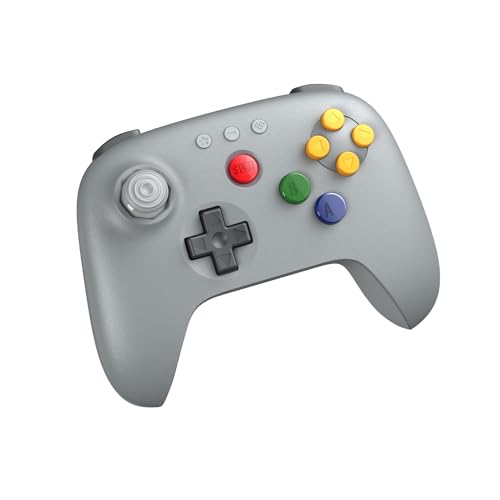 8Bitdo 64 Bluetooth Controller for Analogue 3D
- Compatible with Analogue 3D, Switch, Switch 2, Windows,…
- Bluetooth or Wired USB connection
- D-input and S-input modes
As an Amazon Associate we earn from qualifying purchases at no extra cost to you.
What You Need
Before diving into the optimization steps, gather the necessary hardware and software tools. Having the right equipment ensures you can test both wired and wireless baselines to pinpoint exactly where the latency bottleneck lies.
| Item | Why | Optional? |
|---|---|---|
| Bluetooth Controller | A high-quality gamepad with a reliable internal Bluetooth transmitter (e.g., 8BitDo or official console controllers). | No |
| USB-C Data Cable | A 3-foot to 6-foot shielded cable used to update firmware and establish a wired testing baseline. | No |
| Bluetooth 5.0+ USB Adapter | An external dongle (priced around $10 to $20) to bypass weak, unshielded motherboard Bluetooth chips. | Yes (Highly Recommended) |
| USB 2.0 Extension Cable | A short, 3-foot cable to move your Bluetooth receiver away from interference-heavy USB 3.0 ports. | Yes |
| Firmware Update Software | The official desktop companion app provided by your controller’s manufacturer to flash the latest firmware. | No |
Step-by-Step
Follow these steps in order to isolate and eliminate input delay. We will start with physical wireless optimization before moving into operating system tweaks and emulator-specific configurations.
Step 1: Eliminate Wireless Interference and Physical Obstacles
Estimated Time: 5 minutes
Bluetooth operates on the highly congested 2.4 GHz radio frequency band. This band is shared by your home Wi-Fi network, smart home devices, microwaves, and even USB 3.0 ports. USB 3.0 ports are notorious for emitting electromagnetic noise that directly degrades 2.4 GHz wireless signals. If your Bluetooth receiver is plugged directly into a USB 3.0 port next to an active external hard drive, your controller’s packets will drop, causing massive spikes in input delay.
To fix this, plug your Bluetooth dongle into a USB 2.0 port instead. If your computer only has USB 3.0 ports, connect a 3-foot USB 2.0 extension cable to your PC, and plug the Bluetooth dongle into the end of the cable. Position the dongle on your desk so it has a direct, unobstructed line of sight to your controller. Keep your smartphone and other active Bluetooth devices at least 5 feet away from your play area.
Step 2: Update Your Controller’s Firmware
Estimated Time: 10 minutes
Outdated controller firmware is a primary cause of unstable polling rates and poor connection handshakes. Manufacturers frequently release updates that optimize the internal Bluetooth stack, improve battery efficiency, and resolve latency bugs on modern platforms like the Steam Deck, macOS, and Windows.
To update your controller, download the official firmware updater tool from the manufacturer’s website. Connect your gamepad directly to your PC using a high-quality USB-C cable. Run the software, select your specific model, and follow the prompts to flash the latest firmware. For example, if you are using a premium retro pad, keeping its internal firmware up to date ensures it maintains a stable polling rate and works flawlessly with modern emulation frontends.
Step 3: Optimize Host OS Bluetooth Settings
Estimated Time: 10 minutes
By default, modern operating systems are configured to save power whenever possible. This can cause your Bluetooth receiver to enter a low-power state, reducing its polling frequency and introducing up to 50 milliseconds of artificial input delay. You must force your OS to prioritize performance over power savings.
On Windows, open the Device Manager and expand the Bluetooth section. Right-click your primary Bluetooth adapter (e.g., Intel Wireless Bluetooth or Realtek Bluetooth Adapter) and select Properties. Navigate to the Power Management tab. Uncheck the box that says “Allow the computer to turn off this device to save power.” Click OK. Next, search your system for “Edit Power Plan,” go to “Change advanced power settings,” expand the “USB settings,” and disable “USB selective suspend setting” to ensure your USB ports always deliver maximum power to your wireless receiver.
Step 4: Configure Emulator Latency Settings (Run-Ahead)
Estimated Time: 15 minutes
Even with a perfect wireless signal, emulators introduce inherent lag because they must render frames in advance. Modern emulation frontends like RetroArch offer a revolutionary feature called “Run-Ahead.” This feature runs the emulation core several frames ahead behind the scenes, calculates your inputs, and then displays the corrected frame instantly, effectively stripping away the game’s original built-in lag.
Open RetroArch and navigate to Settings > Latency. Turn on Run-Ahead to Remove Lag. Set the number of frames to run ahead to 1 or 2 (most classic 8-bit and 16-bit games benefit from exactly 1 or 2 frames of run-ahead). Do not set this higher than 3, as it will cause visual jitter and heavy CPU stress. Additionally, ensure that Hard GPU Sync is enabled and set to 0 frames under your video settings, which synchronizes the CPU and GPU to render inputs without delay.
Step 5: Calibrate Display and Test Latency
Estimated Time: 5 minutes
Many gamers mistake display lag for controller input delay. If your TV or monitor is performing heavy post-processing on the video signal, it can add over 100 milliseconds of visual delay, making even a wired controller feel sluggish.
Locate your display’s remote control or physical buttons and open the settings menu. Turn on Game Mode. This disables the display’s internal image processing chips, dropping display latency from a sluggish 100ms down to a crisp 5ms to 15ms. To test your final setup, run a 240p test suite or a simple reaction test in your emulator. You should feel an immediate, snappy response when navigating menus and jumping.
Mistakes to Avoid
- Using Cheap, Generic Bluetooth Dongles: Avoid unbranded $5 USB Bluetooth keys. They often use outdated Bluetooth 2.1 or 3.0 hardware with terrible shielding, which severely limits bandwidth and causes frequent packet drops.
- Over-Allocating Run-Ahead Frames: Setting your emulator’s run-ahead to 4 or more frames will cause audio crackling, visual teleportation, and massive CPU bottlenecks, especially on low-powered devices like single-board computers.
- Leaving Other Bluetooth Devices Active: Running wireless headphones, a smartwatch, and a wireless keyboard on the same cheap Bluetooth receiver simultaneously will choke the available bandwidth, spiking your controller’s latency.
- Neglecting Display “Game Mode”: Forgetting to toggle Game Mode on your television or high-end monitor is the most common reason gamers experience persistent input lag, regardless of how well their controller is configured.
How Often
Maintaining a low-latency emulation environment requires occasional upkeep. You should check for controller firmware updates and emulator software updates once every 6 months to ensure compatibility with evolving operating system protocols. Additionally, perform an environmental sweep whenever you introduce a new wireless router, smart home hub, or high-speed USB 3.0 device to your gaming room, as these additions can introduce fresh radio frequency interference.
When to Call a Pro or Replace
If you have followed every optimization step and still experience severe lag, dropped inputs, or random disconnections, the issue is likely physical hardware degradation. Over time, the internal rechargeable lithium-ion batteries in wireless controllers degrade. When a battery’s voltage drops below a certain threshold, the onboard Bluetooth transmitter’s signal strength weakens dramatically, leading to packet loss that mimics input lag. Furthermore, cheap internal Bluetooth chips on budget motherboards can suffer from physical antenna failure.
If your current setup is showing its age, it is time to upgrade to high-quality, modern hardware designed specifically with low-latency play in mind. In 2026, emulation enthusiasts have access to highly optimized controllers that deliver near-zero wireless lag. If you prefer a classic, highly versatile layout, the 8BitDo SN30 Pro Bluetooth Controller is an exceptional replacement. Priced at $38.99, this 111-gram controller features Hall Effect joysticks (which completely eliminate analog drift), rumble vibration, and turbo functionality. It is highly compatible with the Switch, Switch 2, PC, macOS, Android, Steam Deck, and Raspberry Pi, making it a reliable workhorse for diverse emulation setups.
For those diving into high-fidelity 64-bit emulation, the 8Bitdo 64 Bluetooth Controller is a stellar choice. Retailing for $44.99 in a classic Grey finish, this controller is engineered specifically for use with the Analogue 3D and other advanced emulation setups, offering authentic layout ergonomics combined with modern, high-speed wireless components that minimize latency out of the box.
FAQ
What is an acceptable level of input lag for retro emulation?
For casual gaming, an overall system latency of 50 to 100 milliseconds is acceptable. However, for precision platformers, fighting games, and shoot-’em-ups, you should aim for an overall input latency of under 30 milliseconds. A highly optimized Bluetooth controller paired with emulator run-ahead can achieve a wireless latency of 15 to 25 milliseconds, which is virtually indistinguishable from playing on original hardware.
Does using a 5 GHz Wi-Fi network help reduce Bluetooth controller delay?
Yes, absolutely. Because Bluetooth operates on the 2.4 GHz frequency band, any local network traffic running on 2.4 GHz Wi-Fi will compete for airtime with your controller. By switching your home router and your gaming PC or console to a 5 GHz or 6 GHz Wi-Fi band, you clear the 2.4 GHz spectrum, allowing your controller’s Bluetooth packets to travel to your receiver without collision or delay.
Will switching to a wired USB connection completely eliminate input lag?
While a wired connection bypasses wireless interference and reduces latency by a few milliseconds, it does not completely eliminate input lag. Emulators and operating systems still introduce processing delays. However, testing your controller with a USB-C cable is an essential troubleshooting step; if the input delay vanishes while wired, your issue is strictly related to wireless interference or your Bluetooth receiver.
Can low controller battery cause input delay?
Yes. As a controller’s battery drains, the power management chip inside the gamepad may reduce the power output of the internal Bluetooth transmitter to extend remaining playtime. This weaker signal is much more susceptible to environmental interference, leading to packet loss, stuttering inputs, and perceived input lag. Always keep your gamepad charged above 20% for peak wireless performance.