Key takeaways
- Close background apps that hammer the CPU or constantly sync in the background, they can cause micro-stutters that feel like lag.
- Keep your GPU drivers current, as vendors regularly ship latency and stability improvements.
- Use a wired Ethernet connection for online play, since Wi-Fi adds variable network latency on top of any local input lag.
- Disable unnecessary USB power-saving features in your OS so peripherals never get throttled mid-game.
Input lag is the invisible delay between the moment you move your mouse or press a key and the moment that action appears on screen. In slow-paced games you may never notice it, but in shooters, fighting games, and fast platformers even a few extra milliseconds can be the difference between landing a shot and missing it. The frustrating part is that input lag hides in many places at once, your peripherals, your monitor, your GPU settings, and even your operating system all contribute, so chasing it down means treating your whole setup as one chain.
This guide walks you through the biggest, most controllable sources of input lag and shows you how to reduce each one, in 2026-ready terms. You will learn which settings actually matter, which hardware upgrades give the best return, and how to verify that your changes are working. The goal is a setup that feels instant, where the game responds the moment you do.
Our top picks
 Logitech G305 Lightspeed Wireless Gaming Mouse
- Formats: DVD-ROM
Up to 250 hours of gameplay come from a single AA battery
Endurance mode can extend battery life up to 9 months
At 3.4 ounces, the lightweight body supports high maneuverability
Relies on a single AA battery rather than a rechargeable cell
12,000 DPI sensitivity may be more than casual users need
 Logitech G502 Hero Wired Gaming Mouse
11 programmable buttons allow extensive customization of controls
Adjustable weights let you fine-tune balance to your preference
HERO sensor tracks up to 25,600 DPI without smoothing or filtering
Wired-only design limits freedom compared to wireless mice
RGB lighting customization requires installing Logitech Gaming Software
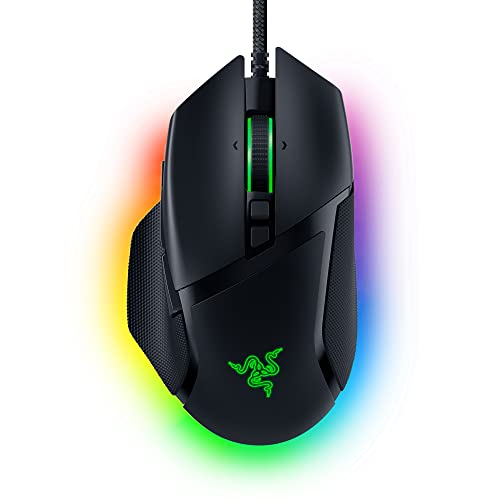 Razer Basilisk V3 Customizable RGB Wired Ergonomic
- PC gaming mouse favored by millions worldwide with…
- Assign macros and secondary functions across 11 programmable…
- Speed through content with a scroll wheel that…
| Product | Key specs | |
|---|---|---|
| Logitech G305 Lightspeed Wireless Gaming Mouse | Formats: DVD-ROM | Check price |
| Logitech G502 Hero Wired Gaming Mouse | Check price | |
| Razer Basilisk V3 Customizable RGB Wired Ergonomic | PC gaming mouse favored by millions worldwide with… Assign macros and secondary functions across 11 programmable… Speed through content with a scroll wheel that… | Check price |
 Logitech G PRO X2 SUPERSTRIKE Wireless Gaming | Designed With Pros, Engineered to Win: Designed alongside… Dominate with industry-leading speed: 30 ms faster clicks… Haptic Feedback: This breakthrough haptic gaming mouse with… | Check price |
 Redragon M612 Wired RGB Optical Gaming Mouse | Pentakill, 5 DPI Levels - Geared with 5… Any Button is Reassignable - 11 programmable buttons… Comfort Grip with Details - The skin-friendly frosted… | Check price |
 Logitech G305 Lightspeed Wireless Gaming Mouse | Ultra-fast LIGHTSPEED wireless technology in this wireless mouse… G305 wireless computer mouse boasts an incredible 250… The durable, compact design with built-in nano receiver… | Check price |
 Razer Basilisk V3 X HyperSpeed Customizable Wireless | Designed for comfort and control, the signature Basilisk… Switch between ultra-low-latency HyperSpeed Wireless for competitive gaming… Stay in the game longer with up to… | Check price |
 Razer DeathAdder Essential Ergonomic Wired Gaming Mouse | PRECISION 6,400 DPI OPTICAL SENSOR Supports up to 10 million clicks RIDGED, RUBBERIZED SCROLL WHEEL FOR MAXIMUM ACCURACY | Check price |
As an Amazon Associate we earn from qualifying purchases at no extra cost to you.
A fast, high-polling-rate mouse is one of the easiest wins for a snappier feel, so the pointing devices above are our recommended picks, from lightweight wireless options to proven wired workhorses that keep latency low.
⚡ Save on Your Next PC — Amazon Prime
Prime members get fast free shipping on the systems above, plus early access to Prime Day & Black Friday PC deals. New members get a 30-day free trial.
Watch: How to Reduce Input Lag in Games — Video Review
Start With Your Peripherals
Your mouse and keyboard are the first link in the chain. A high polling rate (how often the device reports its position, measured in Hz) keeps your inputs current, and modern gaming mice like the Logitech G502 Hero, the Razer Basilisk V3, or the wireless Logitech G305 report frequently enough that they add negligible delay. Wired connections are inherently the most consistent, but today’s best wireless gaming mice use dedicated low-latency radios that are effectively as fast as a cable. The bigger enemy is an old office mouse with a low polling rate, upgrading to a proper gaming mouse is often the single most noticeable improvement.
Put Your Monitor in the Right Mode
Displays can add surprising amounts of lag through image processing. Enable your monitor’s Game Mode, which bypasses much of that processing, and turn off extras like dynamic contrast, motion smoothing, and heavy image enhancement. A higher refresh rate also helps, because frames arrive more often and the newest image reaches your eyes sooner. If your monitor has an overdrive setting, tune it to reduce ghosting without introducing overshoot. These display-side changes cost nothing and often shave off more latency than any single hardware upgrade.
Tame Your In-Game and GPU Settings
Graphics settings have a direct effect on responsiveness. Cap your frame rate slightly below your monitor’s maximum to keep the GPU from becoming a bottleneck, and enable a low-latency mode in your GPU control panel (NVIDIA Reflex or the AMD equivalent) in games that support it. Turn off traditional V-Sync in competitive titles, or pair adaptive sync with a frame cap instead, since classic V-Sync adds a full frame or more of delay. Lowering settings that overload the GPU, rather than the CPU, also keeps frames flowing consistently, which stabilizes latency.
Reduce System and Network Overhead
- Close background apps that hammer the CPU or constantly sync in the background, they can cause micro-stutters that feel like lag.
- Keep your GPU drivers current, as vendors regularly ship latency and stability improvements.
- Use a wired Ethernet connection for online play, since Wi-Fi adds variable network latency on top of any local input lag.
- Disable unnecessary USB power-saving features in your OS so peripherals never get throttled mid-game.
Measure Before and After
It is easy to imagine improvements that are not real, so measure where you can. Many modern GPUs and monitors report a system latency figure you can display as an overlay, and free online reaction-time tests give you a rough baseline for how your setup feels. Change one thing at a time, then re-check, this way you learn which adjustments genuinely help your specific hardware rather than blindly applying every tip. Consistency matters as much as raw numbers, a setup that is always responsive beats one that is occasionally faster but sometimes stutters.
Tips
- Set your gaming mouse to its native, highest DPI-to-polling combination in its software, then adjust sensitivity in-game rather than crippling the sensor.
- Plug peripherals directly into the PC’s rear USB ports, not a cheap unpowered hub, to avoid added latency and dropouts.
- Turn off Windows mouse acceleration (“Enhance pointer precision”) for a consistent one-to-one feel.
- If using wireless gear, keep the receiver close and unobstructed, or use the included extension dock to avoid interference.
Frequently Asked Questions
Does a wireless mouse add noticeable input lag?
Modern gaming wireless mice with dedicated low-latency radios, like the Logitech G305 or Razer’s HyperSpeed models, add so little delay that most players cannot tell them apart from a wired mouse. Cheap generic wireless mice, however, can lag noticeably.
Is wired always better than wireless for reducing lag?
A wired connection is the most consistent and never needs charging, which is why many competitors still prefer it. That said, premium wireless gaming mice have closed the gap to the point where the difference is negligible in real play.
Will a higher refresh rate monitor fix my input lag?
It helps, because frames arrive more frequently and the latest image reaches you sooner, but it is only one part of the chain. Combine a fast monitor with Game Mode, low-latency GPU settings, and a good mouse for the biggest gains.
What single change reduces input lag the most?
It depends on your weakest link. If you are using an old office mouse, upgrading to a gaming mouse is transformative. If your gear is already good, enabling a GPU low-latency mode and turning off V-Sync usually gives the most obvious improvement.
Conclusion
Reducing input lag is about tightening every link in the chain rather than hunting for one magic fix. Start with responsive peripherals, put your monitor in Game Mode, enable low-latency GPU settings, cap your frame rate sensibly, and clean up background and network overhead. Measure your changes so you know what actually works for your hardware. Do all of this and your setup will feel immediate, letting your skill, not your delay, decide the outcome.
FAQ
Does a wireless mouse add noticeable input lag?
Is wired always better than wireless for reducing lag?
Will a higher refresh rate monitor fix my input lag?
What single change reduces input lag the most?
More from Amazon
Programs that pair well with the guide above. Offers and eligibility are set by Amazon and may change.
Free shipping on eligible items, Prime Video and more. Eligible new members can start with a free trial.
Start a Prime free trialAd-free music streaming. Eligible new subscribers can start with a free trial.
Try Music Unlimited freeA Prime membership for ages 18-24 with a trial period. Eligibility is set by Amazon.
See Prime for Young AdultsAudiobooks and podcasts to listen to on the go. Eligible new members can start with a free trial.
Try Audible freeAs an Amazon Associate we earn from qualifying purchases.