Key takeaways
- Use MSI Afterburner for NVIDIA and AMD cards; it exposes the voltage/frequency curve editor.
- AMD users can also undervolt directly in the Adrenalin software’s tuning tab.
- Grab a monitoring overlay so you can watch temperature, clocks, and power while you test.
What's inside
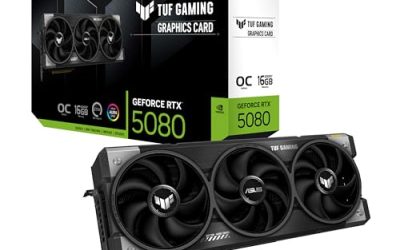
Undervolting a GPU sounds counterintuitive: you lower the voltage and often keep the same performance. The result is a graphics card that runs cooler, quieter, and draws less power, sometimes while holding or even improving clock speeds because it no longer throttles from heat. For anyone with a hot or loud card, it is the best free tuning you can do.
This guide explains how to undervolt safely using free software and how to test the result. It pairs well with good physical support for a heavy card, since an anti-sag GPU support bracket like the acer or California JOS holder keeps a modern three-slot card such as an RTX 5060 from stressing the PCIe slot over time.
As an Amazon Associate we earn from qualifying purchases at no extra cost to you.


⚡ Save on Your Next PC — Amazon Prime
Prime members get fast free shipping on the systems above, plus early access to Prime Day & Black Friday PC deals. New members get a 30-day free trial.
Watch: How to Undervolt Your GPU — Video Review
Why Undervolting Works
Manufacturers set a voltage with generous headroom so every card in a batch is stable, even the weakest. Most cards run fine with less. Cutting voltage lowers heat and power draw, and because GPUs throttle when they get hot, a cooler card can sustain higher boost clocks, giving you the same or better frames with less noise.
Get the Right Tool
- Use MSI Afterburner for NVIDIA and AMD cards; it exposes the voltage/frequency curve editor.
- AMD users can also undervolt directly in the Adrenalin software’s tuning tab.
- Grab a monitoring overlay so you can watch temperature, clocks, and power while you test.
Build a Stable Voltage-Frequency Curve
In Afterburner, open the curve editor, pick a target like 875mV, and set your desired clock at that point, then flatten the curve to the right so the card never exceeds that voltage. Apply, and the GPU now targets your chosen clock at a lower voltage. Start conservative; you can tighten it once it proves stable.
Test Thoroughly Before Trusting It
An unstable undervolt crashes games or produces artifacts. Run a demanding benchmark loop like 3DMark Speed Way or Unigine, plus an hour in your actual games. If you see a driver crash, black screen, or visual glitches, raise the voltage slightly and retest until it is rock solid.
Tips
- Change one point on the curve at a time so you know what caused any instability.
- Save your stable profile in Afterburner and set it to load at startup.
- Note temperatures before and after; a good undervolt often drops load temps by 5-15C.
- Support a heavy card with an anti-sag bracket to protect the slot during all this testing.
Frequently Asked Questions
Can undervolting damage my GPU?
No. Lowering voltage cannot harm the card; the worst case is instability or a crash, which you fix by raising voltage. It is far safer than overclocking with extra voltage.
Will I lose performance?
Often not. Because a cooler card throttles less, many undervolted GPUs match or beat their stock performance while running quieter and cooler. Aggressive undervolts can cost a little, so tune to taste.
How much cooler will my card run?
It varies by card and cooler, but a 5-15C drop in load temperatures is common, along with noticeably lower fan speeds and quieter operation.
Do I need to undervolt every time I boot?
No. Save the profile in your tuning software and enable apply-at-startup, so the undervolt loads automatically with Windows and you never think about it again.
Conclusion
Undervolting is the rare tweak that makes your GPU cooler, quieter, and more efficient with little downside. Use Afterburner to set a lower voltage for your target clock, test hard with benchmarks and real games, and save the profile to load at boot. Add an anti-sag bracket for a heavy card, and you get a graphics card that performs its best without sounding like a jet.