Our Top Picks
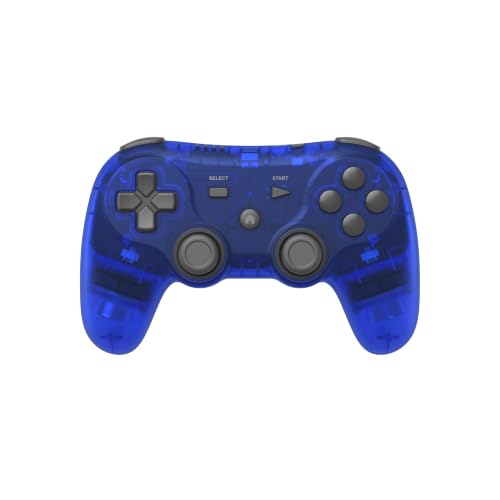 Retro Fighters Defender Pro Wireless Controller for PS16 X 3 X 2.75 IN (L X W X H)3.3 x 6 x 7 inchesCheck on Amazon
The Retro Fighters Defender Pro is the best retro controller for emulation if you want one pad that covers the widest range of systems: it pairs 2.4GHz and Bluetooth modes with Hall effect analog sticks, so it handles PlayStation-era games as well as 8-bit and 16-bit classics. If you only emulate the NES and SNES, the Retro-Bit Legacy16 wireless or wired pad is the tidier fit, and a budget two-pack of SNES-style USB pads is enough for a RetroPie build. “For emulation” here means a pad your PC, Mac, Raspberry Pi or Switch sees as a standard USB or wireless gamepad.
Quick List
- Retro Fighters Defender Pro – best for PS1-era and modern emulation that needs analog sticks and wireless freedom.
- Retro-Bit Legacy16 2.4GHz Wireless – best for SNES-style play without a cable on PC, Pi or Switch.
- Retro-Bit Legacy16 Wired – best for a plug-in, nothing-to-charge pad with a long cable.
- Rii Classic Retro USB (2 Pack) – best for a first two-player emulator setup on a Pi or PC.
- miadore SNES USB (2 Pack) – best for RetroPie cabinets and shelf builds with several players.
- KIWITATA 2X Classic SNES USB – best for Windows and Mac users starting with a desktop emulator.
Which One Is Right for You?
| If you… | Choose |
|---|---|
| emulate PS1, PS2-era or other analog-stick games as well as 2D classics | Retro Fighters Defender Pro |
| want a cable-free SNES-layout pad that also works with a Switch dock | Retro-Bit Legacy16 2.4GHz Wireless |
| prefer zero batteries and zero pairing, with a roughly 10 ft cord | Retro-Bit Legacy16 Wired |
| need two matching pads for a Raspberry Pi or PC with the smallest outlay | Rii Classic Retro USB (2 Pack) |
| are building a RetroPie cabinet and want a pad with concave and convex button shapes | miadore SNES USB (2 Pack) |
| run VirtuaNES, RetroArch or OpenEmu on a desktop and want a simple USB pair | KIWITATA 2X Classic SNES USB |
| plan to play on a Nintendo Switch | Retro-Bit Legacy16 (either version) or the Defender Pro, not the three plain USB two-packs |
The split is simple. Pads with analog sticks and multiple wireless modes cost more and cover more systems. Plain SNES-shaped USB pads do one job well: they give you a D-pad and six buttons that every emulator can map. Decide which systems you actually emulate, then match the controller to that list rather than to a feature count.
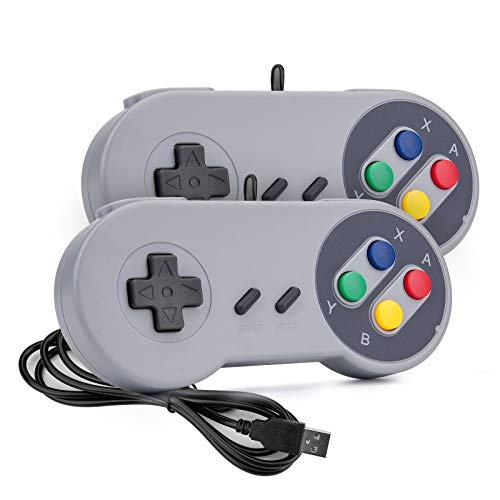
Rii Classic Retro USB Wired Game Controller for PC Gaming, Grey, 2 Pack
Chosen because it specifies Grey and 2 Pack.
View on Amazon
KIWITATA 2X Classic SNES USB Controller for PC Gamings, Retro SNES Wired USB Game Emulator Controller for Windows XP 7 8 11 Mac Raspberry Pi 3
Picked as a relevant option in this category.
View on Amazon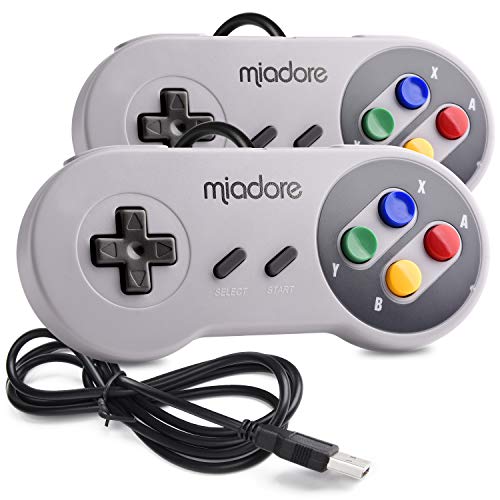
2 Pack USB Controller for SNES Retro Gaming, miadore SNES USB Classic Gamepad Joypad Gamestick for Windows PC MAC Linux Retropie Raspberry Pi 3
Picked as a relevant option in this category.
View on Amazon
Retro Fighters Defender Pro Wireless Controller for PS1, PS2, PS3, Switch, & PC | 2.4GHz & Bluetooth (Ocean Blue)
Chosen because it specifies PS2 and PS3.
View on Amazon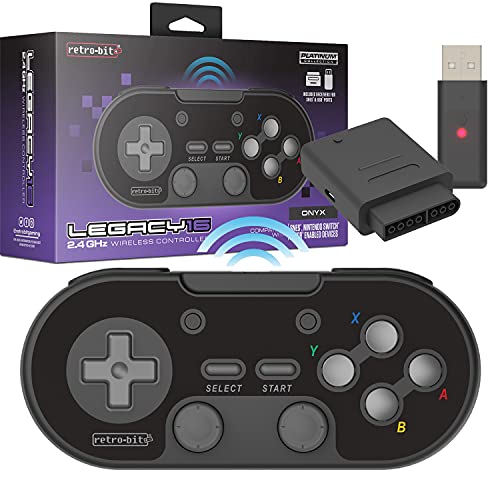
Retro-Bit Legacy16 2.4GHz Wireless Controller for SNES & More (Onyx)
Picked as a relevant option in this category.
View on AmazonAll 6 Picks in Detail
1. Rii Classic Retro USB (2 Pack) – Best for a Budget Two-Player Setup
As an Amazon Associate we earn from qualifying purchases at no extra cost to you.

Rii sells a pair of grey SNES-style USB pads aimed at emulation. The listing describes six fire buttons, Start, Select and a cross-shaped directional pad, a 1.5 m (about 5 ft) cable, and driver-free plug and play. It suits first-time Raspberry Pi and PC builders who want two players ready at once.
- Two controllers in the pack, in grey.
- Wired USB with a 1.5 m cable.
- Six fire buttons plus Start and Select.
- Listed support: Windows (including XP through 11), Mac OS X, Raspberry Pi and Raspberry Pi OS.
- Third-party design; the listing says buttons are not auto-assigned, so you map them in the emulator.
Pros:
- Two pads in one purchase for local multiplayer.
- No drivers or software needed according to the listing.
Cons:
- The listing says it is not applicable to Switch or PlayStation games and not compatible with TV boxes.
- No analog sticks, so it suits 2D systems only.
A two-pack also solves the most annoying emulation chore, which is finding two identical pads so that player one and player two feel the same. Keep them plugged into the same ports each time so the emulator keeps assigning them to the same player slots.
It is functionally close to the miadore and KIWITATA pairs, so choose on button feel and availability.
2. KIWITATA 2X Classic SNES USB – Best for Desktop Emulator Beginners

KIWITATA’s two-pack leans toward Windows and Mac users, and its listing names emulators such as VirtuaNES, RetroArch and OpenEmu. It describes a frosted concave cross key, a standard USB 2.0 connection, and a 1.5 m cable. It suits someone launching a first emulator on a laptop who wants a pad that feels closer to the originals than a keyboard.
- Two controllers, grey body with purple keys.
- USB 2.0 wired connection, 1.5 m (about 5 ft) cable.
- Frosted concave cross key described as anti-sweat and anti-slip.
- Listed support: Windows 98 through 11, Mac OS X, Linux and Raspberry Pi.
- The listing states it is not for an original SNES console and does not support Switch.
Pros:
- Listing names common emulators, making setup easier to follow.
- Two pads for local play on a PC.
Cons:
- Manual button mapping is required.
- No analog sticks or wireless.
Because the listing explicitly names VirtuaNES on PC and OpenEmu on Mac as starting points, a beginner can follow the same path: install the emulator, plug in both pads, then open the input menu and press each button when prompted. The listing also asks Mac and Raspberry Pi users with problems to contact the seller, so keep your order details handy.
It is the closest of the three plain USB pairs to the Rii in function, with the clearest emulator guidance in its listing.
3. miadore SNES USB (2 Pack) – Best for RetroPie Cabinets

The miadore two-pack is explicitly pitched at RetroPie and Raspberry Pi emulation. The listing describes an eight-way D-pad, six digital buttons, a cord of about 5 ft, and a tactile split: concave X and Y buttons, convex A and B buttons, and rubber Start and Select. It suits builders assembling a shelf or cabinet who want a pair that is simple to mount and replace.
- Two controllers in white.
- Eight-way directional pad and six digital buttons.
- Roughly 5 ft cord.
- Listed support: Windows 98 through 10, Mac OS X, RetroPie and Raspberry Pi 2 and 3.
- Third-party controller; the listing says you may need to map buttons in input settings.
Pros:
- Distinct button shapes help you find keys by touch.
- Listing advice to plug in before launching the emulator avoids a common detection problem.
Cons:
- No analog input and no wireless option.
- The listing mentions older Windows versions but not Windows 11, so confirm on the product page if that matters.
For a cabinet or living-room shelf, the 5 ft cord is a reasonable length when the Pi sits next to the TV. If you sit farther away, plan on a USB extension cable, which the listing does not include.
Next to the Rii pair, it is nearly equivalent; the white finish and button-shape detail are the main differences.
4. Retro-Bit Legacy16 Wired – Best for a Simple Plug-In Pad

The wired Legacy16 is the no-fuss member of the family. It plugs into any USB-enabled device and the listing gives it a 10 ft (3 m) cable, long enough for a couch-to-TV setup. It suits players who want authentic 16-bit ergonomics and do not want to think about batteries, pairing or receivers.
- USB connection with a 10 ft (3 m) cable.
- Listed compatibility: Nintendo Switch, PC, MacOS, RetroPie, Raspberry Pi and other USB-enabled devices.
- Dedicated Home, Screenshot, and ZL and ZR shoulder buttons.
- Responsive D-pad and precision buttons, in Onyx color.
- Listing dimensions of about 6.3 x 2.0 x 4.0 inches.
Pros:
- No battery, no receiver, no pairing step.
- Works on both a Switch and desktop emulators.
Cons:
- The cable limits movement and can snag in a crowded room.
- It is sold singly, so two-player setups need a second pad.
Because it presents as a standard USB device, a RetroPie or Pi build should recognize it without a driver, and the extra shoulder and Home buttons give you spare inputs for menu, rewind or save-state shortcuts inside RetroArch. That makes it a good “player one” pad even in a house full of cheaper clones.
It is the natural alternative to the wireless Legacy16 if you value reliability over mobility.
5. Retro Fighters Defender Pro – Best for PS1-Era and Modern Emulation
The Defender Pro is the broadest controller in this group. Its listing names PS1, PS2, PS3, Switch and PC support, and it offers both 2.4GHz and Bluetooth connections. That matters for emulation because PS1-style games expect two analog sticks and pressure-sensitive inputs, which a plain SNES-shaped pad cannot provide. It suits players who run a mix of retro and modern titles on a PC or handheld and want one pad for all of it.
- Dual wireless modes: 2.4GHz and Bluetooth.
- Hall effect analog sticks, which use magnetic sensing instead of contact potentiometers.
- Pressure-sensitive buttons for finer control in games that read button pressure.
- Triggers with a switch between analog and digital stops.
- Listed compatibility: PS1, PS2, PS3, PlayStation Classic, Switch and PC.
Pros:
- One pad spans 8-bit through early-3D emulation.
- Hall effect sticks avoid the wear pattern that causes drift in older stick designs.
Cons:
- A bigger, more complex pad than a SNES clone; you may not need the extras for 2D-only libraries.
- Battery life and charging details are not stated in the listing, so confirm on the product page.
In practice, the sensible way to use it is to start in 2.4GHz mode on a PC or a handheld and switch to Bluetooth only when no receiver port is free. Because it advertises a PS1 and PS2 lineage, it is also a good candidate for emulators that expect a DualShock-style layout, where face buttons, shoulder buttons and two sticks map one to one.
Compared with the Legacy16 wireless pad, it trades the compact SNES layout for analog control and a second connection mode.
6. Retro-Bit Legacy16 2.4GHz Wireless – Best for Cable-Free SNES-Style Play
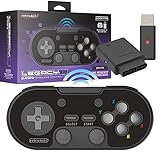
The Legacy16 Wireless keeps the classic 16-bit shape and adds modern conveniences. The listing says it includes both an SNES original port receiver and a USB 2.4GHz receiver, so it can serve an original console and a PC or Pi. It suits players who want authentic ergonomics for SNES, NES and Genesis-era games without a cord across the room.
- Two receivers in the box: an SNES port receiver and a USB 2.4GHz receiver.
- Extra ZL and ZR shoulder buttons plus Home and Screenshot buttons.
- Additional macro functions.
- Listed as compatible with SNES Nintendo Switch Online.
- Receivers update through Micro-USB (the cable is not included).
Pros:
- Familiar SNES feel with Switch-style extra buttons.
- The listing urges a firmware update before use, which shows the firmware is serviceable.
Cons:
- The listing notes that on Switch, “Pro Controller Wired Communication” must be enabled before pairing, which adds a setup step.
- Battery capacity is not stated in the listing; confirm on the product page.
One practical point: update the receiver and controller firmware before settling on it, as the listing recommends, and keep the Micro-USB cable you use for that in your drawer. If you also own an original SNES, the SNES-port receiver lets the same pad serve real hardware, which is unusual among emulation controllers.
Against the wired Legacy16, you pay for wireless convenience and take on charging and receiver setup.
Specs Compared
| Controller | Connection | Layout | Cable or range | Listed platforms | Packs |
|---|---|---|---|---|---|
| Retro Fighters Defender Pro | 2.4GHz and Bluetooth | Dual analog, Hall effect sticks, analog/digital triggers | Wireless; range confirm on listing | PS1, PS2, PS3, PS Classic, Switch, PC | 1 |
| Retro-Bit Legacy16 2.4GHz Wireless | 2.4GHz via SNES and USB receivers | SNES-style with ZL/ZR, Home, Screenshot | Wireless; range confirm on listing | SNES, Switch, PC and USB devices per listing | 1 |
| Retro-Bit Legacy16 Wired | USB wired | SNES-style with ZL/ZR, Home, Screenshot | 10 ft (3 m) | Switch, PC, Mac, RetroPie, Raspberry Pi | 1 |
| Rii Classic Retro USB | USB wired | D-pad, six fire buttons, Start, Select | 1.5 m (about 5 ft) | Windows, Mac, Raspberry Pi | 2 |
| miadore SNES USB | USB wired | Eight-way D-pad, six digital buttons | About 5 ft | Windows, Mac, RetroPie, Raspberry Pi | 2 |
| KIWITATA 2X Classic SNES USB | USB 2.0 wired | Cross key, function buttons | 1.5 m (about 5 ft) | Windows, Mac, Linux, Raspberry Pi | 2 |
How We Chose These
We built this list from the catalog listings, not from play sessions. For each controller we read the title, the listed features and the specification fields, then cross-checked brand details against manufacturer product information where it was available. We sorted the six by how many emulation targets each can serve (2D-only, 2D plus PlayStation-era, console and PC), by connection type, and by how clearly the listing explains setup. We favored pads whose listings state platform support and mapping steps plainly, and we noted where a listing leaves a value open. We did not rank by price or by ratings.
What to Look For
Match the Layout to the Systems You Emulate
The most useful question is which consoles you plan to emulate. NES, SNES, Genesis and Game Boy libraries are designed around a D-pad and four to six buttons, so a SNES-shaped pad is a natural fit. PlayStation, Nintendo 64 and Dreamcast-era games assume analog sticks, and some assume analog triggers or pressure-sensitive buttons. A D-pad-only controller can still run those games in some cases, but you lose smooth movement in 3D titles. If your list spans both eras, a pad with sticks like the Defender Pro saves you from owning two controllers.
Wired or Wireless, and What Each Costs You
A USB cable has no pairing, no battery and no radio interference, which is why wired pads suit permanent builds. Wireless pads use either a 2.4GHz dongle or Bluetooth. A dedicated 2.4GHz receiver generally connects faster and more predictably, while Bluetooth removes the dongle but depends on the host device’s Bluetooth stack. A Raspberry Pi running RetroPie can pair Bluetooth pads, though setup takes a few more steps than a USB pad. Rule of thumb: pick wired for a console-like TV box that stays put, wireless if you play from a couch.
Input Mode and Mapping
Emulators read pads through standard interfaces: XInput for Xbox-style layouts and DirectInput for generic HID gamepads. Cheap USB SNES clones usually appear as generic HID devices, which is why their listings say you must map buttons by hand. Frontends such as RetroArch can remember a mapping, so you do it once per controller type. A pad that auto-configures saves time, but a hand-mapped pad works just as well afterward. Check that your emulator lets you save profiles per player so two identical pads do not swap numbers after a reboot.
Console Compatibility Is Not Universal
Three of the pads here (Rii, miadore, KIWITATA) state they are third-party controllers meant for computers and the Pi. Their listings say they do not support Switch or PlayStation games and that they will not work on an original SNES. The Legacy16 and Defender Pro lists mention Switch support, with the Legacy16 noting a settings change before pairing. Always read the compatibility line before buying for a handheld or console.
Durability and Sticks
Analog sticks that use potentiometers wear as the contact surface rubs. Hall effect sticks measure position with magnets instead, so they avoid that mechanism and are marketed as drift-resistant. Rubber-membrane buttons, as on the miadore Start and Select, are quiet but feel softer. Worked example: if you play two hours a day on a 2D library, a D-pad-only pad will serve you for years; if you play 3D games daily, stick quality becomes the thing to protect.
A Worked Example: Choosing for a Mixed Library
Suppose your library is 70 percent NES and SNES, 20 percent PS1 and 10 percent Genesis, and you play on a living-room PC. A pair of plain USB pads covers the 90 percent that uses a D-pad, but PS1 games with analog movement will feel stiff. Buying one Defender Pro for those games and a cheap two-pack for local multiplayer costs less than outfitting every seat with an analog pad, and keeps the sticks where they are needed. Apply the same rule to your own list: count how many games per system you actually play, then buy analog only for the systems that need it.
Questions
Do I need analog sticks for retro emulation?
Only for systems that used them. NES, SNES, Genesis and Game Boy games play fine on a D-pad. PlayStation, Nintendo 64 and Dreamcast titles are designed around analog sticks, so a pad with them gives better control.
Will a SNES-style USB pad work on a Raspberry Pi?
The Rii, miadore and KIWITATA listings all name Raspberry Pi support, and miadore names RetroPie. Plug the pad in before starting the emulator, then map the buttons in the input settings if the frontend does not detect them.
Can these controllers be used on a Nintendo Switch?
The Retro-Bit Legacy16 listings and the Retro Fighters Defender Pro list Switch support. The three plain USB two-packs say they are not for Switch. For the wireless Legacy16, the listing says to enable Pro Controller Wired Communication before pairing.
Is 2.4GHz or Bluetooth better for emulation?
A 2.4GHz receiver is usually simpler and more predictable because it is a dedicated link. Bluetooth is convenient when you do not want a dongle. The Defender Pro offers both, so you can try each and keep what suits your device.
Why do I have to map buttons myself?
Generic USB gamepads report raw button numbers, not named buttons. The emulator cannot guess which is A or B, so you assign them once in the input menu. Most frontends save the layout afterward.
Do I need a wireless pad for a couch setup?
Not necessarily. A cable of about 10 ft, as on the wired Legacy16, reaches many couches from a nearby device. If your PC or Pi is farther away, a wireless model is easier.
Update History
- October 14, 2026 – Initial publication; product set drawn from current catalog listings.
- Check the product page for current specifications and availability before buying.
Sources
- Manufacturer product and specification pages for Retro-Bit and Retro Fighters.
- Retailer listing titles, feature bullets and specification fields for all six products.
- Emulator frontend documentation conventions (RetroArch, RetroPie) as general background on input mapping.