Key takeaways
- A full render queue. When the GPU is the bottleneck, the CPU prepares frames ahead and they wait in line. Every queued frame adds one full frame time of delay, which is what Reflex is built to remove.
- V-Sync. It holds finished frames until the next screen refresh, and when the frame rate cannot keep up, frames back up behind it. It is the setting most likely to make aim feel heavy.
- Low or uneven frame rates. Big drops during Bangalore smoke, Gibraltar’s ultimate or a third-party fight feel like sudden lag.
- Display mode. Borderless Window passes frames through the Windows compositor; exclusive Full Screen is the most consistent path.
- Shader and texture stutter. Apex has run only on DirectX 12 since patch 24.1 in March 2025, and DX12 rebuilds its shader cache in the first matches after a patch or driver update. These are frame-time spikes, but they feel like lag in a fight.
- Hardware outside the game: mouse polling rate, monitor processing, or a display accidentally running at 60 Hz.
To reduce input lag in Apex Legends, set NVIDIA Reflex to Enabled or Enabled + Boost, turn V-Sync off, play in Full Screen, set Adaptive Resolution FPS Target to 0, and cap your frame rate a few frames under your monitor’s refresh rate with the +fps_max launch option so the graphics card never sits pinned at 99% usage. Below is where the lag comes from, how to check which cause applies to your PC, and the exact values to use.
What Causes Input Lag in Apex Legends
- A full render queue. When the GPU is the bottleneck, the CPU prepares frames ahead and they wait in line. Every queued frame adds one full frame time of delay, which is what Reflex is built to remove.
- V-Sync. It holds finished frames until the next screen refresh, and when the frame rate cannot keep up, frames back up behind it. It is the setting most likely to make aim feel heavy.
- Low or uneven frame rates. Big drops during Bangalore smoke, Gibraltar’s ultimate or a third-party fight feel like sudden lag.
- Display mode. Borderless Window passes frames through the Windows compositor; exclusive Full Screen is the most consistent path.
- Shader and texture stutter. Apex has run only on DirectX 12 since patch 24.1 in March 2025, and DX12 rebuilds its shader cache in the first matches after a patch or driver update. These are frame-time spikes, but they feel like lag in a fight.
- Hardware outside the game: mouse polling rate, monitor processing, or a display accidentally running at 60 Hz.
Network delay is separate. Ping and server updates decide when your shot registers for others; no graphics setting changes that.

UGLYAF apex Legends Heirloom Desktop Ornament Gifts Decorations
Included for 'How to Reduce Input Lag in Apex Legends (Reflex, FPS Caps)' as a relevant option in this category; details come from the product listing.
View on Amazon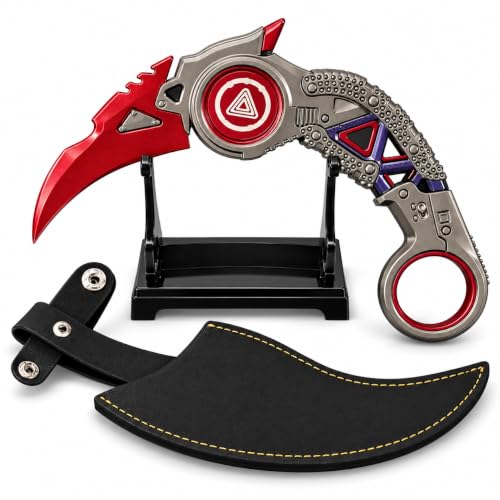
Pexylun Apex Legends Game-Inspired Metal Karambit Replica, 6.3 Inch Unsharpened Zinc Alloy Collectible Prop with Protective Sheath and Display Stand, Gaming Desk Decor & Gift for Collectors
Included for 'How to Reduce Input Lag in Apex Legends (Reflex, FPS Caps)' because the listing specifies Gaming Desk Decor & Gift for Collectors, details this guide uses to compare options.
View on Amazon
Pexylun Apex Legends Predator Keychain, Rose Gold Enamel, Zinc Alloy
Included for 'How to Reduce Input Lag in Apex Legends (Reflex, FPS Caps)' because the listing specifies Rose Gold Enamel and Zinc Alloy, details this guide uses to compare options.
View on Amazon
Electronic Arts APEX Legends Mirage 6-Inch Collectible Action Figure
Included for 'How to Reduce Input Lag in Apex Legends (Reflex, FPS Caps)' as a relevant option in this category; details come from the product listing.
View on AmazonFrame Time Math: Why FPS Still Matters
Each frame represents a fixed slice of delay, and a backed-up render queue adds whole frames on top. This is why a GPU-bound PC at 144 fps can feel slower than a capped PC at 138 fps.
| Frame rate | Frame time | Added delay, 1 queued frame | Added delay, 2 queued frames |
|---|---|---|---|
| 60 fps | 16.7 ms | 16.7 ms | 33.3 ms |
| 120 fps | 8.3 ms | 8.3 ms | 16.7 ms |
| 144 fps | 6.9 ms | 6.9 ms | 13.9 ms |
| 165 fps | 6.1 ms | 6.1 ms | 12.1 ms |
| 240 fps | 4.2 ms | 4.2 ms | 8.3 ms |
| 300 fps | 3.3 ms | 3.3 ms | 6.7 ms |
Checks Before You Change Anything
Confirm the real refresh rate
In Windows Settings, open System, Display, Advanced display and check the refresh rate. A 144 Hz or 240 Hz monitor left at 60 Hz is one of the most common reasons Apex feels sluggish. Use DisplayPort or a cable rated for your resolution and refresh rate.
Find out whether you are GPU-bound or CPU-bound
Turn on a performance overlay (NVIDIA app, AMD Adrenalin or the Steam FPS counter) and play the Firing Range and a real match. If GPU usage sits at 95 to 99%, the render queue is filling and Reflex plus a frame cap help the most. If GPU usage stays well below that while fps swings, the CPU is the limit, so close background apps and lower CPU-heavy options like Ragdolls. In Reflex games the NVIDIA overlay can also show PC Latency, the best number to compare before and after each change.
Clean out old launch options
Remove leftovers such as -eac_launcher_settings SettingsDX12.json or -anticheat_settings=SettingsDX11.json. DirectX 11 was removed in patch 24.1, and the PC version moved from Easy Anti-Cheat to EA Javelin Anticheat on September 29, 2026, so those flags do nothing useful and can cause launch errors. The launch option EA still documents is +fps_max.
Fixes: In-Game Video Settings
| Setting | Value | Why |
|---|---|---|
| Display Mode | Full Screen | Most direct presentation path |
| V-Sync | Disabled | Stops frames waiting for the refresh cycle; with G-Sync or FreeSync, use the driver method below instead |
| NVIDIA Reflex | Enabled + Boost (or Enabled) | Keeps the render queue near empty; Boost also holds GPU clocks up when CPU-limited, at the cost of extra power and heat |
| Adaptive Resolution FPS Target | 0 | Stops resolution shifting mid-fight, which causes uneven pacing and blur |
| Texture Streaming Budget | A tier 1 to 2 GB under your VRAM | Running out of video memory causes hitching as textures swap |
| Effects Detail | Low | Limits the worst drops in smoke, ultimates and explosions |
| Sun Shadow Coverage / Sun Shadow Detail | Low | Shadows are a large GPU cost outdoors |
| Volumetric Lighting / Ambient Occlusion Quality | Disabled | Frees GPU headroom so a frame cap can hold |
| Ragdolls / Impact Marks | Low or Disabled | Reduces spikes in busy fights |
Fixes: Cap Your Frame Rate the Right Way
A cap lowers latency only when it stops the GPU from maxing out, so choose a value your PC holds in a crowded end-game ring, not in the lobby. Add +fps_max and a number to the launch options: in Steam under Properties, General, Launch Options, or in the EA app under View properties, Advanced launch options. Type it with no space after the plus sign; +fps_max 0 removes the cap. The engine is widely reported to top out around 300 fps.
| Monitor refresh | Refresh interval | Manual +fps_max (VRR on) | Approximate Reflex auto-cap |
|---|---|---|---|
| 144 Hz | 6.94 ms | 141 | about 138 |
| 165 Hz | 6.06 ms | 162 | about 157 |
| 240 Hz | 4.17 ms | 237 | about 224 |
| 360 Hz | 2.78 ms | Cap at what the GPU holds | about 324, above what Apex usually renders |
The auto-cap column uses the approximate rule players have measured for NVIDIA’s automatic limit when Reflex, G-Sync and driver V-Sync are combined: refresh rate minus refresh rate squared divided by 3,600. At 144 Hz that is 144 minus 5.8, or roughly 138 fps. It keeps every frame inside the variable refresh window so V-Sync never builds its own queue.
With a G-Sync or FreeSync monitor
Enable variable refresh, keep V-Sync Disabled in Apex, set Vertical sync to On in the NVIDIA Control Panel, and leave Reflex Enabled. Reflex then caps just under the refresh rate by itself, giving no tearing without the classic V-Sync delay. On AMD, enable FreeSync and use a +fps_max cap three frames under the refresh rate.
Without variable refresh
Leave V-Sync off and accept some tearing. Run uncapped if GPU usage stays under about 95%; otherwise cap at a value the GPU sustains with headroom.
Fixes: Driver, Windows and Hardware
- NVIDIA: when Reflex is on, it takes priority over the Control Panel’s Low Latency Mode, so there is no need to stack them.
- AMD: AMD’s published list of games with Anti-Lag 2 integration has not included Apex Legends, so use the standard Radeon Anti-Lag toggle in an Apex profile in Adrenalin and turn Radeon Chill off. Avoid Anti-Lag+ on old drivers; AMD withdrew it in 2023 after anti-cheat conflicts.
- Shader stutter: after a patch or driver update, spend a few minutes in the Firing Range before ranked so the DX12 cache builds, and avoid wiping the shader cache repeatedly.
- Windows: keep Game Mode on, close capture and RGB software you do not need, and if you prefer Borderless Window, turn on Optimizations for windowed games in Windows 11’s graphics settings.
- Mouse and display: use at least 1000 Hz polling, which reports every 1 ms instead of every 8 ms at 125 Hz. On a TV, enable Game Mode to skip picture processing.
Console players
On PS5 and Xbox Series X|S, open the Video tab and select Performance next to Graphics Mode for the 120 fps mode, which cuts frame time from 16.7 ms to 8.3 ms on a 120 Hz display.
What to Expect
The biggest gain comes when a GPU-bound system moves from V-Sync with a full queue to Reflex with a sensible cap. Published measurements of that kind of change typically show reductions in the tens of percent, while CPU-limited systems see much less; results vary with hardware, resolution, settings and patch. If PC Latency barely moves after these fixes, the remaining delay is more likely the mouse, display or network.