Key takeaways
- Read the precise motherboard model from the board itself or via System Information, since variants (WiFi vs non-WiFi) use different files.
- Check your current BIOS version in the BIOS screen or with a tool like CPU-Z.
- Download only the file for your exact model from the manufacturer’s support page, never a third-party mirror.
A BIOS update sounds intimidating, but it is often the fix for a PC that will not boot a new CPU, ignores your fast RAM, or crashes in a specific game. Motherboard makers ship firmware updates that add CPU support, improve memory compatibility, and patch stability bugs. Done correctly it is routine; done carelessly it can brick a board, so the process deserves respect.
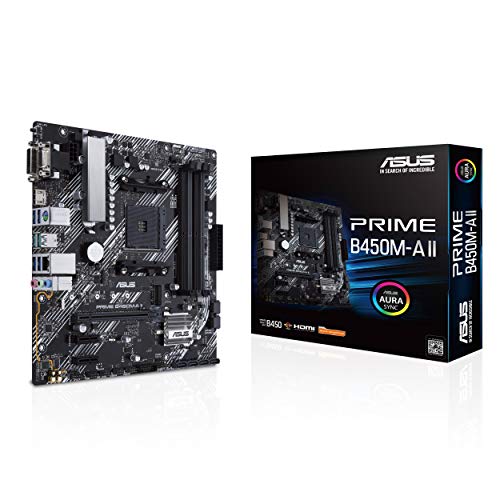
This guide covers updating safely on modern boards, including the increasingly common BIOS Flashback method that works even without a CPU installed. Boards like the ASUS TUF Gaming B550-PLUS WiFi II and the ASRock B860M Pro A both support flashing tools that make the process far less risky than it used to be.
Our top picks




As an Amazon Associate we earn from qualifying purchases at no extra cost to you. Ratings are shown as listed on Amazon.
⚡ Save on Your Next PC — Amazon Prime
Prime members get fast free shipping on the systems above, plus early access to Prime Day & Black Friday PC deals. New members get a 30-day free trial.
Watch: How to Update Your Motherboard BIOS — Video Review
Check If You Actually Need It
Do not update BIOS for no reason. Flash it when you are installing a newer-generation CPU the board shipped before, when your RAM will not run at its rated speed, or when release notes list a fix for a bug you are hitting. If your system is stable and complete, leave it alone.
Find Your Exact Model and Version
- Read the precise motherboard model from the board itself or via System Information, since variants (WiFi vs non-WiFi) use different files.
- Check your current BIOS version in the BIOS screen or with a tool like CPU-Z.
- Download only the file for your exact model from the manufacturer’s support page, never a third-party mirror.
Use the Built-In Flashing Tool
Modern boards include a safe in-BIOS updater, called EZ Flash on ASUS or Instant Flash on ASRock. Copy the firmware to a FAT32 USB drive, enter BIOS, launch the tool, and select the file. It verifies the file before writing, which prevents most bad flashes.
BIOS Flashback for No-Boot Situations
If a new CPU is too new for the current firmware, BIOS Flashback lets you update with no CPU or RAM installed. Rename the file as the manual specifies, put it in the labeled USB port, and press the Flashback button. The board writes firmware on its own, solving the chicken-and-egg problem.
Tips
- Never turn off or restart the PC during a flash; a power loss mid-write is what bricks boards.
- Plug into a wall outlet or UPS, not a flaky power strip, before flashing.
- Use a FAT32-formatted USB drive; NTFS or exFAT often will not be read by the flashing tool.
- After updating, load optimized defaults and re-enable XMP/EXPO, since a flash resets your settings.
Frequently Asked Questions
Can a BIOS update brick my motherboard?
Only if it is interrupted or you flash the wrong file. Using the correct file for your exact model and never cutting power during the process makes bricking very unlikely.
Do I need a CPU installed to update BIOS?
Not if your board supports BIOS Flashback. That feature is designed to flash firmware with no CPU or RAM present, which is essential for supporting brand-new processors.
Will updating BIOS delete my files?
No. BIOS lives on the motherboard, not your storage drive, so your Windows install and files are untouched. It does reset BIOS settings to default, though.
How often should I update BIOS?
Rarely. Update for a new CPU, a memory compatibility fix, or a specific stability patch. There is no benefit to chasing every release on a working system.
Conclusion
Updating your BIOS is safe when you match the exact file to your board, use the built-in flashing tool or Flashback, and never interrupt power mid-write. Treat it as a targeted fix rather than routine maintenance, follow the steps in order, and you will unlock new CPU support and better memory compatibility without the horror stories.