Our Top Picks
Pros & cons
- Read and write speeds up to 7450/6900 MB/s suit demanding workloads
- Over 55% random performance improvement is noted versus the 980 PRO
- Up to 50% better performance per watt reduces power draw
- PCIe 4.0 speeds depend on a compatible motherboard slot to reach full potential
- 2TB capacity may require a larger model for extensive game libraries
Two terabytes is the capacity where an NVMe drive stops feeling like a compromise. A Windows install, a sprawling game library, a few creative project folders and years of downloads can share one M.2 stick without the constant ritual of uninstalling something to make room. That shifts the real question. A 2TB buyer is rarely deciding how much space to get; the choice is which interface tier and which controller class deserve the money, because the listed drives below span PCIe 3.0, PCIe 4.0 and PCIe 5.0 with very different quoted speeds.
This guide is written for desktop builders, laptop upgraders and handheld owners who already settled on 2TB and need to sort the listed drives by what each title actually promises. Everything here rests on the listed specs, so treat every quoted speed as a ceiling rather than a guarantee. In 2026 the gap between a mainstream Gen4 drive and a flagship Gen5 drive shows up mostly in large sustained transfers, not in how quickly a game reaches its menu, and that fact should guide how much you spend.
Quick Picks

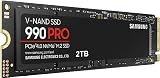
Samsung SSD 990 PRO 2TB, PCIe 4.0 M.2 2280, Up to 7,450 MB/s | NVMe Internal Solid State Hard Drive for High End Computing, Gaming, and Heavy Duty Workstations, (MZ-V9P2T0B/AM)
One of the consumer electronics options compared in this guide.
View on Amazon
Samsung SSD 9100 PRO 2TB, PCIe 5.0x4 M.2 2280, Up to 14,700MB/s | NVMe Internal Solid State Hard Drive best for AI Computing, Gaming, and Heavy Duty Workstations (MZ VAP2T0B/AM)
One of the consumer electronics options compared in this guide.
View on Amazon
Silicon Power 2TB NVMe M.2 PCIe Gen3x4 2280 SSD Solid State Drive (SP002TBP34A60M28)
One of the consumer electronics options compared in this guide.
View on Amazon
Crucial P310 2TB SSD, PCIe Gen4 NVMe M.2 2280, Up to 7,100MB/s, for Laptop, Desktop (PC), & Handheld Gaming Consoles, Includes Acronis Data Recovery Software, Solid State Drive - CT2000P310SSD801
One of the consumer electronics options compared in this guide.
View on Amazon
Samsung SSD 990 EVO Plus 2TB, PCIe Gen 4x4 | 5x2 M.2 2280, Up to 7,250 MB/s | NVMe Internal Solid State Drive, Upgrade Storage for PC/Laptops, HMB Technology & Intelligent Turbowrite 2.0 (MZ-V9S2T0B/AM)
One of the consumer electronics options compared in this guide.
View on Amazon
Sandisk Optimus 5100 2TB NVMe SSD, PCIe 4.0, M.2 2280 | Up to 7,100MB/s Read Speeds, Up to 6,700MB/s Write Speeds, Internal Solid State Drive - SDSP51200TAN
One of the consumer electronics options compared in this guide.
View on Amazon
Kingston NV3 2TB M.2 2280 NVMe SSD | PCIe 4.0 Gen 4x4 | Up to 6000 MB/s | SNV3S/2000G
One of the consumer electronics options compared in this guide.
View on Amazon
Silicon Power 2TB UD90 NVMe 4.0 Gen4 PCIe M.2 SSD R/W up to 5,000/4,800 MB/s (SP02KGBP44UD9005)
One of the consumer electronics options compared in this guide.
View on Amazon
WD Blue SN5100 2TB NVMe SSD - M.2 2280, PCIe Gen 4.0, Internal Solid State Drive - Read Speeds Up to 7,100MB/s, Upgrade Storage for PC/Laptops - WDS200T5B0E
One of the consumer electronics options compared in this guide.
View on Amazon| Product | Best for | Key spec from the title |
|---|---|---|
| Samsung 990 PRO | High-end Gen4 desktops and workstations | PCIe 4.0 M.2 2280, up to 7,450 MB/s |
| Samsung 9100 PRO | Gen5 builds that move huge files | PCIe 5.0 x4, up to 14,700 MB/s |
| Crucial P310 | Laptops, desktops and handhelds | PCIe Gen4 NVMe, up to 7,100 MB/s |
| Samsung 990 EVO Plus | Everyday upgrades for PCs and laptops | PCIe Gen 4×4 or 5×2, up to 7,250 MB/s |
| Sandisk Optimus 5100 | Buyers who care about write speed | PCIe 4.0, 7,100 MB/s read, 6,700 MB/s write |
| Kingston NV3 | Budget-tier Gen4 storage | PCIe 4.0 Gen 4×4, up to 6000 MB/s |
| WD Green SN350 | Bulk storage on older Gen3 systems | Gen3 PCIe, QLC, up to 3,200 MB/s |
| Silicon Power UD90 | Mid-range Gen4 with balanced read and write | Gen4 PCIe, up to 5,000/4,800 MB/s read/write |
| WD Blue SN5100 | Mainstream Gen4 from a familiar brand | PCIe Gen 4.0, reads up to 7,100 MB/s |
The 9 Best Options
Samsung 990 PRO 2TB
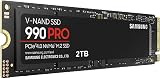
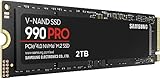
The 990 PRO is the drive for someone who wants a flagship Gen4 part and sees no reason to wait for Gen5 motherboards to become common. The listing states PCIe 4.0, M.2 2280 and speeds of up to 7,450 MB/s, and it pitches the drive at high-end computing, gaming and heavy-duty workloads. That is a clear statement of intent: this is the performance model in its family, not the entry model, and it suits people who keep large project files and games on the same volume.
- A quoted 7,450 MB/s sits at the top of what a Gen4 interface can deliver.
- The standard M.2 2280 size fits nearly every desktop board and most laptop bays.
- It is marketed for heavy workloads such as video editing, which suits big project files.
- It sits in the premium tier of Gen4, so the extra spend buys headroom more than everyday speed.
- It uses a Gen4 link only, so it cannot take advantage of a Gen5 slot.
Skip it if your workload is mostly gaming and web use, because the lower-tier Gen4 drives later in this list feel very similar in daily life. It sits one step below the 9100 PRO, which keeps the same brand and capacity but jumps to a newer interface. A useful test is to ask what you would do with the extra speed on a normal Tuesday. If the honest answer is open a browser and launch a game, the 990 PRO is more drive than you need; if the answer is ingest a day of footage and begin editing right away, the premium begins to make sense.
Samsung 9100 PRO 2TB
The 9100 PRO is the Gen5 option in this group. The title lists PCIe 5.0 x4, M.2 2280 and up to 14,700 MB/s, and it mentions AI computing, gaming and heavy-duty work. Nothing else here quotes anything close to that figure, which makes the drive the obvious pick for a builder planning around a Gen5 slot who regularly copies very large files, such as raw footage, scratch caches or model datasets from one disk to another.
- The listed 14,700 MB/s ceiling is roughly double what any Gen4 drive here quotes.
- The PCIe 5.0 x4 interface gives a new platform room to grow as software catches up.
- It keeps the same 2280 length as the rest, so no special case design is needed.
- Gen5 drives are generally the hottest-running class, so plan on a board heatsink and decent case airflow.
- In an older Gen4 slot it falls back to Gen4 speeds, which wastes the premium.
Skip it if your board only has Gen4 slots or your files are small; game load times barely change. Next in line is the Crucial P310, a more modest drive built for a different kind of buyer. Think of the 9100 PRO as a platform decision as much as a storage decision: it makes the most sense when the motherboard, cooling and workload were all chosen with Gen5 in mind, and much less sense when it is dropped into an older system as a simple upgrade.
Crucial P310 2TB
Crucial’s P310 is written up for broad compatibility. The title names PCIe Gen4 NVMe, M.2 2280 and up to 7,100 MB/s, and it lists laptops, desktops and handheld gaming consoles as targets. It also mentions bundled Acronis data recovery software, which is handy when you are cloning an old drive during an upgrade and want a safety net before wiping anything.
- The listing explicitly names handheld gaming consoles, which is rare among these titles.
- A quoted 7,100 MB/s is competitive with pricier Gen4 models in the same list.
- The bundled recovery software helps when moving an existing Windows install.
- The title says nothing about endurance, so check the spec sheet before ordering.
- No write speed is quoted, which makes sustained-copy behavior harder to judge from the listing.
Skip it if you want a flagship drive for heavy editing. Compared with the 990 EVO Plus that follows, the P310 leans toward handheld and laptop flexibility, while the Samsung leans toward general desktop upgrades. The P310 is also a natural fit for anyone who plans to move the drive between devices later, for example from a laptop into a handheld, since the title is written around that flexibility. Confirm the length and thickness supported by each device first.
Samsung 990 EVO Plus 2TB
The 990 EVO Plus is the mainstream Samsung in this group. Its title lists PCIe Gen 4×4 and 5×2, M.2 2280 and up to 7,250 MB/s, and it describes the drive as a storage upgrade for PCs and laptops. The dual lane notation matters: besides the usual four-lane Gen4 link, the drive can connect through a narrower two-lane Gen5 link, which can be useful in some compact or newer systems that route fewer lanes to a slot.
- A quoted 7,250 MB/s lands between the Crucial and the 990 PRO.
- The listing names both Gen 4×4 and 5×2 connections, so it adapts to more slot layouts.
- It is aimed squarely at PC and laptop upgrades, which keeps the use case simple.
- It is positioned below the PRO line, so heavy workstation duty is not its purpose.
- The title offers no endurance figure, so you need the spec sheet to compare wear limits.
Skip it if you just need a plain Gen4 drive and would rather spend less; the Kingston sits lower on the ladder. The next pick, the Sandisk Optimus 5100, differs by putting its write speed right in the title. If you shop mainly on sticker numbers, the 990 EVO Plus is easy to overlook, but its dual-lane wording signals flexibility that a plain Gen4 listing does not offer, and that can matter when you move a drive from one system to another over the years.
Sandisk Optimus 5100 2TB
This is one of the few titles that states both directions: up to 7,100 MB/s reads and up to 6,700 MB/s writes on PCIe 4.0 in the M.2 2280 format. Buyers who copy large game folders, render caches or video exports care about the write number, and here it is visible without opening a data sheet. That transparency makes the drive easy to compare against anything else with the same interface.
- The write speed of up to 6,700 MB/s is stated up front instead of being hidden.
- A 7,100 MB/s read figure keeps it level with the Crucial and WD Blue entries.
- PCIe 4.0 means broad support across current boards and laptops.
- The brand is less common in premium NVMe builds than Samsung, so some buyers want more reassurance.
- The title mentions no heatsink, so long sustained loads may need board cooling.
Skip it if you want a drive with a long public track record behind it. Next is the Kingston NV3, which gives up speed in exchange for a lower tier. Because both write and read speeds are visible here, the Optimus 5100 is easy to compare line by line with the WD Blue SN5100 later in the list, and the two may well come down to warranty length and which brand you prefer to deal with if something goes wrong.
Kingston NV3 2TB
The NV3 is the straightforward budget-tier Gen4 listing. The title says M.2 2280, NVMe, PCIe 4.0 Gen 4×4 and up to 6000 MB/s, along with the model number SNV3S/2000G. It does not claim to be a flagship, and that modesty is the point: it is a way to get 2TB onto a modern interface without paying for headroom you may never use in a gaming-focused machine.
- It uses a plain Gen 4×4 interface without extra marketing claims.
- Up to 6000 MB/s is plenty for game loading and operating system use.
- The clear model number makes it easy to look up the exact spec sheet and warranty.
- It has the lowest quoted speed among the Gen4 drives in this guide.
- No endurance, write speed or software details appear in the title.
Skip it if you plan on heavy video work or constant large writes. The next pick, the WD Green SN350, drops down again to Gen3 and QLC for a very different goal. The NV3 is the kind of purchase that makes sense when the rest of the build is modest as well, such as a mid-range processor and a mid-range graphics card, because a flagship drive in that machine would be the most expensive part that never gets fully used.
WD Green SN350 2TB
The WD Green is the capacity-first listing. The title spells out Gen3 PCIe, QLC, M.2 2280 and up to 3,200 MB/s. Those words tell a clear story: this is bulk storage for a secondary slot, an older laptop or a system with only a Gen3 connection, and not a primary workhorse for creators. For a library of installed games and media that rarely change, it can still do the job quietly.
- The title is upfront about QLC, which helps you set realistic expectations.
- It works well on older Gen3 platforms where a faster drive would be wasted.
- It is reasonable for games and media that are read far more often than written.
- Up to 3,200 MB/s is the lowest figure in this group.
- QLC flash generally slows down during long, large writes once its fast cache fills.
Skip it if this drive will be your boot and project disk on a modern board. The Silicon Power UD90 comes next and lifts the interface to Gen4 without moving into premium territory. Treat the WD Green as a deliberate specialist: it is good at holding things and unremarkable at everything else. If you notice yourself copying large folders every day, that is the moment to step up to a Gen4 TLC-class drive instead of squeezing more out of a QLC model.
Silicon Power UD90 2TB
The UD90 sits in the middle of the pack. Its title reads NVMe 4.0 Gen4 PCIe M.2 with read and write speeds of up to 5,000 and 4,800 MB/s. Both numbers are stated, and the gap between them is small, which suggests a balanced profile for people who copy files about as often as they read them. It is a sensible pick for a second drive in a Gen4 desktop or a general upgrade in a laptop.
- Read and write speeds are both listed and close to each other.
- The Gen4 interface works in current desktop and laptop slots.
- It is a modest tier that avoids paying for a flagship label.
- Peak reads of 5,000 MB/s trail the 7,000-class drives in this list.
- The brand appears less often in premium builds than Samsung or WD.
Skip it if you want the best Gen4 numbers available. Last is the WD Blue SN5100, which reaches 7,100 MB/s from a better-known name and shares the same 2280 footprint. A smart way to use the UD90 is as the second drive in a desktop that already has a fast boot disk: games and media go on the UD90, and the operating system stays on the quicker drive, so the lower peak speed never gets in the way of anything you notice.
WD Blue SN5100 2TB
The WD Blue SN5100 pairs a mainstream name with PCIe Gen 4.0, M.2 2280 and reads of up to 7,100 MB/s. The title positions it as an upgrade for PCs and laptops. For buyers who already trust WD for older drives, it is the least surprising option in the list, and the numbers match the Crucial and Sandisk entries, so the choice often comes down to brand preference and warranty terms.
- Reads of up to 7,100 MB/s match the best mainstream Gen4 figures here.
- A familiar brand and clear model code make warranty lookups simple.
- It works as a drop-in upgrade for both laptops and desktops.
- The title gives no write speed, so sustained behavior is unclear.
- It is not a Gen5 drive, so it does not future-proof a new platform.
Skip it if you want the highest ceilings; the 9100 PRO covers that. If it fits, it is a clean middle road between the Kingston NV3 below it and the Samsung flagships above it, and it brings the list full circle. Before you buy, look up the exact model code printed in the listing and confirm the warranty length and endurance figure on the maker page, because those two numbers separate similar-looking Gen4 drives more than the headline speed does.
Who Needs a 2TB NVMe Drive
Players with a growing game library
Modern titles routinely ask for large installs, and a 1TB drive fills quickly once a handful of big releases sit beside the operating system. A 2TB drive lets a player keep a rotation of favorites installed instead of downloading the same data every few months, which also saves bandwidth on capped connections. If you buy several big releases each year, the extra space pays for itself in convenience. It also reduces the wear of constant deleting and rewriting, since you are not forced to cycle the same few hundred gigabytes of installs over and over just to fit the next download.
Creators who edit on the same disk
Photo libraries, proxy files and video cache folders grow without warning. With 2TB, an editor can keep active projects and scratch space on one fast volume. For these buyers the drives with stated write speeds, such as the Sandisk Optimus 5100 or the Gen5 9100 PRO, deserve a close look, because export and cache work is write-heavy and a slow drive will stall it. Keeping the source files, the cache and the export folder on the same fast volume also removes the habit of shuffling work between disks, which is where many editors lose time.
Upgraders who want to avoid a second drive
Many laptops and small-form-factor desktops have one M.2 slot. Replacing a 512GB or 1TB drive with a 2TB model means the upgrade is done once, and there is no need to juggle external storage or cloud sync. Handheld owners with a swappable M.2 drive gain the same benefit, since they can carry a much larger library without cables. It is also the least disruptive upgrade for anyone who dislikes opening cases: one slot, one screw, one clone job, and the machine feels roomier immediately.
How to Choose a 2TB NVMe SSD
Match the interface to your slot
Check your motherboard or laptop manual for the M.2 slot generation. A Gen3 slot tops out around 3,500 MB/s no matter how fast the drive is, a Gen4 slot tops out near 7,500 MB/s, and a Gen5 slot can reach roughly 14,000 MB/s, while a Gen3 slot is the oldest of the three. Buying a Gen5 drive for a Gen4 slot wastes money. Buying a Gen3 drive for a Gen4 slot leaves speed unused but can still be fine for bulk storage. Always confirm the slot also supports NVMe and not only SATA M.2 drives. If you are unsure, the manual page that lists the storage connectors will say which slot is wired to the processor and which goes through the chipset, and the processor-attached slot is normally the one that gets the full speed.
Look at flash type and endurance
QLC flash, as named in the WD Green title, stores more bits per cell and tends to slow down in long writes. TLC flash usually holds its speed better. Whatever the drive, find the terabytes-written figure on the spec sheet; 2TB drives commonly list somewhere between 600 and 1,200 TBW, and lower numbers suit light home use better than daily heavy work. A multi-year warranty tied to that figure is a good sign. Light users who write a few dozen gigabytes a day will never approach these limits, but anyone who edits video, builds large software projects or keeps a busy database should pay attention to them.
Check the form factor and heat
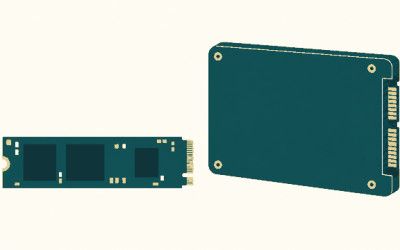
Every drive in this guide is M.2 2280, meaning 22 mm wide and 80 mm long. Confirm that your slot accepts that length, since some compact boards and laptops use shorter sizes. Gen5 drives run hot, so verify there is room for a heatsink or that the board ships with one. In thin laptops, height matters: a bare drive is slim, but a bolt-on heatsink may not fit under the bay cover.
Read the quoted speeds with caution
Peak sequential figures describe best-case copies of large files. Game loading, boot time and app launches depend more on latency and the rest of the system. A 5,000 MB/s drive and a 7,000 MB/s drive feel nearly identical when opening a game, so ignore small gaps in the headline number and focus on the tier, the flash type and the warranty. It also helps to remember that your processor, memory and software decide how quickly a game loads far more than the last 1,000 MB/s of drive speed.
Consider warranty and bundled software
Look for at least a three-year warranty and, ideally, five years on premium models. Bundled cloning or recovery tools, like the one mentioned in the Crucial title, save time when migrating a Windows install. Also confirm whether the maker provides a firmware update tool, because that can matter over the life of the drive. Finally, look at the supplier: a clear model code, a retail warranty and a maker support page are small signs that the listing is genuine and that a replacement will be straightforward if the drive fails.
Know where budget models cut corners
Cheaper drives often use QLC flash, skip a dedicated DRAM cache or rely on host memory, and quote high peak speeds that drop once a fast cache fills. They may also carry lower endurance numbers and shorter warranties. None of that makes them bad, but it makes them better as game and media drives than as scratch disks for sustained writes, so match the drive to the job. A practical rule: if the drive will hold things you can re-download, a budget tier is a safe choice; if it will hold the only copy of your work, spend on endurance, warranty and a proper backup routine instead of on peak speed.
PCIe 4.0 vs PCIe 5.0 at 2TB
| Factor | PCIe 4.0 drives | PCIe 5.0 drive |
|---|---|---|
| Listed top speed in this guide | 6000 to 7,450 MB/s on the faster Gen4 titles | Up to 14,700 MB/s |
| Slot required | Gen4 or Gen5 M.2 slot | Gen5 M.2 slot to reach full speed |
| Heat and cooling | Usually manageable | Often needs a heatsink and airflow |
| Everyday gaming feel | Excellent | Nearly identical |
| Best use | Most builds | Large file transfers and new platforms |
When Gen4 is the sensible choice
For most buyers Gen4 is the sweet spot. Games, operating systems and normal creative work are rarely limited by sequential speed above 7,000 MB/s. A Gen4 drive also works on a wider range of boards and laptops, runs cooler and leaves more budget for a graphics card or more memory, both of which change gaming results far more than a faster drive does. Gen4 also has the widest selection, as the seven Gen4 titles here show, so you can choose on warranty, write speed or brand without compromising the interface.
When Gen5 earns its place
Gen5 pays off when you routinely move files measured in tens of gigabytes, work with raw video, or want a drive that will still match your next motherboard. It also makes sense when your board has a dedicated Gen5 slot you would otherwise leave empty. If none of this applies, a Gen4 drive is the calmer purchase, and the savings can go to capacity elsewhere in the build. If you do pick Gen5, plan the cooling at the same time as the drive, and confirm that the slot you intend to use is wired for Gen5 rather than being a second slot that runs at a lower speed.
Setup, Compatibility and Upgrade Tips
What to check before buying
Open your system manual or a hardware information tool and confirm the M.2 slot count, supported generation and length. Make sure the slot supports NVMe, not only SATA M.2. For laptops, check whether the bay accepts single-sided drives only, and whether a metal bracket or shield is needed. Also note whether the slot shares lanes with other ports, because populating it can switch off a SATA connector or lower the speed of another slot. Write down the exact model of your board or laptop so you can check these details quickly.
What to upgrade first
If you are replacing an old boot drive, clone it using the vendor’s migration software, or do a clean Windows install and keep the old drive as a backup until the new one proves stable. After the swap, update the motherboard firmware and the drive firmware, then confirm the link speed in the system information tools so you know the drive is running at the generation you paid for. Then run a few large file copies to confirm the drive behaves normally, and keep the original drive untouched for a week or two. Back up personal files to a separate device before any migration, even if the cloning tool promises a safe result.
Common compatibility traps
Some boards disable a SATA port when a particular M.2 slot is populated. Gen5 drives in Gen4 slots run at Gen4 speed, which is fine but wasteful. A heatsink that comes with a board may not fit under a large graphics card. Finally, a drive that reports 2TB will show roughly 1.8TB in Windows because of binary measurement, which is normal and not a defect. Laptops add their own trap: some manufacturers lock the bay to a certain length or require a thermal pad that is only included with the original drive, so read the service manual before opening the case.
Which One Fits Your Situation
You are building a new Gen5 workstation
The Samsung 9100 PRO is the match here. It is the only listed drive with a PCIe 5.0 x4 interface, and the 14,700 MB/s ceiling suits big-file work such as raw video offloads and scratch disks.
You game on a handheld or small laptop
The Crucial P310 names handheld consoles and laptops directly in the title, so it is the safest listing for that kind of device, and the bundled recovery software helps with the migration.
You want a fast Gen4 boot drive on a sensible plan
The WD Blue SN5100 gives 7,100 MB/s reads from a familiar brand and fits most builds without drama. The Kingston NV3 is the lower-tier alternative if you want to spend less.
You need cheap bulk storage for an older PC
The WD Green SN350 is a Gen3 QLC drive that does the job for media and installed games on an older system, where speed is not the point and capacity is.
Common Mistakes
- Buying a Gen5 drive for a board that only offers Gen4 slots and paying for speed that cannot be used.
- Treating the quoted peak read speed as the speed of every real file copy.
- Ignoring QLC in the title and then using the drive as a heavy write disk.
- Forgetting to check M.2 length and heatsink clearance in a small case or laptop.
- Skipping the firmware update on both the board and the drive after installing.
- Filling the drive to the last gigabyte, which hurts performance on nearly every SSD.
Related guides
- Business Laptops With Quad Core Processors
- Retro Game Storage Cases And Displays
- Solar Chargers For Camping And Hiking
Frequently Asked Questions
Is 2TB enough for a gaming PC?
For most players, yes. It holds an operating system and a rotating set of large games. If you keep many titles installed at once or edit video, pair it with a second drive.
Do I need a heatsink for an NVMe drive?
Gen4 drives often run fine with a motherboard shield, while Gen5 drives like the 9100 PRO benefit strongly from one. Check your board’s included covers before buying a separate part.
Will a Gen4 drive work in a Gen3 slot?
Yes, because the standard is backward compatible. The drive will simply be limited to Gen3 speed, so you will not see its listed maximum.
Is QLC bad for a 2TB drive?
Not inherently. QLC suits storage that is read often and written rarely, such as a game library. It is a weaker fit for constant large writes.
Can I use these drives in a console?
Only the listing tells you what is supported. The Crucial P310 title names handheld gaming consoles, but always confirm the console’s own requirements, including heatsink rules, before buying.
Should I clone my old drive or reinstall Windows?
Cloning is faster and keeps your settings, while a clean install can remove old clutter. Either works, and keeping the old drive as a backup until the new one is stable is a smart habit.
Final Words
A 2TB NVMe drive is one of the most useful upgrades available, and the listed options make the trade-offs clear. Pick the 9100 PRO for Gen5 builds, the 990 PRO or Optimus 5100 for demanding Gen4 work, the P310, 990 EVO Plus or WD Blue SN5100 for balanced everyday use, the NV3 or UD90 for lower tiers, and the WD Green SN350 for bulk storage. Match the drive to your slot first, then to your workload, and the rest follows easily. Keep the quoted speeds in perspective, read the endurance and warranty details on the maker page, and avoid paying for a tier your machine cannot use.