Key takeaways
- Use a DisplayPort cable when possible, as older HDMI versions can cap the refresh rate below the panel’s rating.
- After connecting a new monitor, open your OS display settings and manually select the highest refresh rate, it often defaults to 60Hz.
- Enable FreeSync or G-Sync Compatible mode in both your GPU control panel and the monitor’s on-screen menu for it to work.
- Match your ambitions to your hardware, a 240Hz panel is wasted if your GPU only reaches 90 FPS in the games you actually play.
What's inside
- Watch: What Is Refresh Rate? Gaming Monitors Explained — Video Review
- Refresh Rate vs. Frame Rate: They Are Not the Same
- Why 144Hz Is the Popular Sweet Spot
- Panel Type Still Matters: IPS, VA, and TN
- Response Time and Motion Clarity
- Don’t Forget Adaptive Sync
- Tips
- Related Guides
- Frequently Asked Questions
- Conclusion
- Related Articles
Refresh rate is one of the most talked-about numbers on any gaming monitor spec sheet, yet it is also one of the most misunderstood. Measured in hertz (Hz), it tells you how many times per second the screen redraws the image in front of you. A 60Hz panel updates 60 times a second, a 144Hz panel 144 times, and so on. The higher that number, the smoother motion appears, the less blur you see when the camera whips around, and the more current your on-screen information stays. In fast, competitive games that difference is not just cosmetic, it directly affects how quickly you can react.
- Watch: What Is Refresh Rate? Gaming Monitors Explained — Video Review
- Refresh Rate vs. Frame Rate: They Are Not the Same
- Why 144Hz Is the Popular Sweet Spot
- Panel Type Still Matters: IPS, VA, and TN
- Response Time and Motion Clarity
- Don’t Forget Adaptive Sync
- Tips
- Related Guides
- Frequently Asked Questions
- Conclusion
- Related Articles
In this guide you will learn what refresh rate actually does, how it differs from frame rate, why 144Hz has become the sweet spot for most players, and how to make sure your whole setup can take advantage of a faster panel. By the end you will be able to read a spec sheet with confidence and pick a monitor that matches your GPU, your games, and your budget.
As an Amazon Associate we earn from qualifying purchases at no extra cost to you.

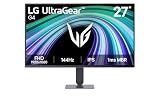





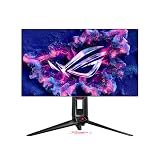
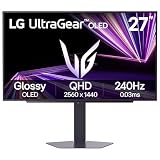
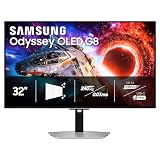
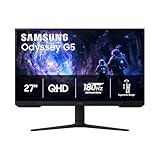
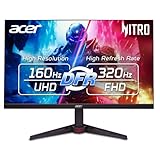
The monitors above are our recommended picks for stepping up to a high-refresh display, spanning compact 22-inch panels to fast 24-inch IPS screens, so you can match the resolution and size to your desk and graphics card.
⚡ Save on Your Next PC — Amazon Prime
Prime members get fast free shipping on the systems above, plus early access to Prime Day & Black Friday PC deals. New members get a 30-day free trial.
Watch: What Is Refresh Rate? Gaming Monitors Explained — Video Review
Refresh Rate vs. Frame Rate: They Are Not the Same
Frame rate (frames per second, or FPS) is how many images your graphics card produces every second. Refresh rate is how many times your monitor can display a new image. They work together but come from different parts of your system. If your GPU pushes 200 FPS into a 60Hz monitor, you only ever see 60 of those frames, the rest are discarded. If your monitor is 144Hz but your GPU only manages 45 FPS, you get a smooth panel showing a choppy feed. To feel the benefit of a faster monitor, both numbers need to be high, which is why a 144Hz screen like the LG 27G414B or the ASUS TUF VG249QE5A pairs best with a graphics card that can actually reach triple-digit frame rates in your favorite titles.
Why 144Hz Is the Popular Sweet Spot
The jump from 60Hz to 144Hz is enormous and instantly noticeable, even on the Windows desktop. Cursor movement looks fluid, scrolling text stays readable, and in-game motion sharpens dramatically. The step from 144Hz to 240Hz or 360Hz is real but far more subtle, and it demands a much stronger PC to feed those frames. For the vast majority of players, 144Hz (or the overclockable 165Hz you see on panels like the Sceptre E248B) delivers most of the competitive advantage without forcing an expensive GPU upgrade. That balance of cost, smoothness, and achievable frame rates is exactly why 144Hz dominates the mainstream gaming market.
Panel Type Still Matters: IPS, VA, and TN
Refresh rate does not exist in a vacuum. The panel technology behind it shapes color, viewing angles, and response time. IPS panels, found in monitors like the LG 24G411A and the msi PRO MP243L, offer excellent color and wide viewing angles, and modern fast-IPS versions now hit low response times that used to be TN-only territory. VA panels give deeper contrast, which is great for dark, atmospheric games, but can show smearing in fast motion. TN panels are the cheapest and fastest but look washed out off-axis. For most people a fast IPS panel at 144Hz is the best all-round choice, delivering both speed and image quality.
Response Time and Motion Clarity
A high refresh rate only pays off if the pixels can change color fast enough to keep up. That is where response time (measured in milliseconds) comes in. A 1ms rated panel switches pixels quickly enough to avoid ghosting trails behind moving objects. Look for a monitor that pairs its high refresh rate with a genuine low response time and a working overdrive setting, rather than one that advertises 144Hz but smears in practice. Many of the panels above list 1ms motion figures precisely because clarity, not just the Hz number, is what makes fast gameplay feel crisp.
Don’t Forget Adaptive Sync
Even with a strong GPU, frame rates fluctuate. Adaptive sync technologies (AMD FreeSync and NVIDIA G-Sync Compatible) let the monitor vary its refresh rate on the fly to match the GPU’s output, eliminating the tearing and stutter you get when the two fall out of step. Most modern high-refresh monitors, including G-Sync Compatible options like the LG Ultragear models, support this over DisplayPort and HDMI. Turning it on is one of the easiest ways to make a fast panel feel even smoother, especially in demanding games where you dip below your monitor’s maximum Hz.
Tips
- Use a DisplayPort cable when possible, as older HDMI versions can cap the refresh rate below the panel’s rating.
- After connecting a new monitor, open your OS display settings and manually select the highest refresh rate, it often defaults to 60Hz.
- Enable FreeSync or G-Sync Compatible mode in both your GPU control panel and the monitor’s on-screen menu for it to work.
- Match your ambitions to your hardware, a 240Hz panel is wasted if your GPU only reaches 90 FPS in the games you actually play.
Frequently Asked Questions
Is 144Hz enough for competitive gaming in 2026?
Yes. 144Hz remains the standard for serious competitive play and delivers the overwhelming majority of the benefit over 60Hz. Only the most dedicated esports players chasing every millisecond of advantage need 240Hz or higher, and only if their PC can sustain those frame rates.
Can I notice the difference between 60Hz and 144Hz?
Almost everyone notices it immediately, even in simple tasks like moving the mouse or scrolling a web page. In games the improvement in motion smoothness and clarity is obvious and hard to give up once you are used to it.
Does a higher refresh rate reduce input lag?
Indirectly, yes. A higher refresh rate shortens the time between frames, so the newest image reaches your eyes sooner. It is not the only factor in input lag, but a fast panel is one meaningful piece of a responsive setup.
Do I need an expensive GPU for a 144Hz monitor?
Not necessarily. At 1080p, many mid-range graphics cards can push well past 100 FPS in popular esports and competitive titles, letting you enjoy a 144Hz panel fully. Very demanding AAA games at maximum settings are where a stronger GPU becomes important.
Conclusion
Refresh rate is the heartbeat of a gaming monitor, dictating how smooth and responsive everything on screen feels. For most players in 2026, a 144Hz fast-IPS panel with a low response time and adaptive sync hits the perfect balance of speed, image quality, and value, provided your graphics card can keep the frames flowing. Understand how refresh rate and frame rate work together, pick a panel that matches your hardware, and you will feel the upgrade the moment your cursor first glides across the screen.